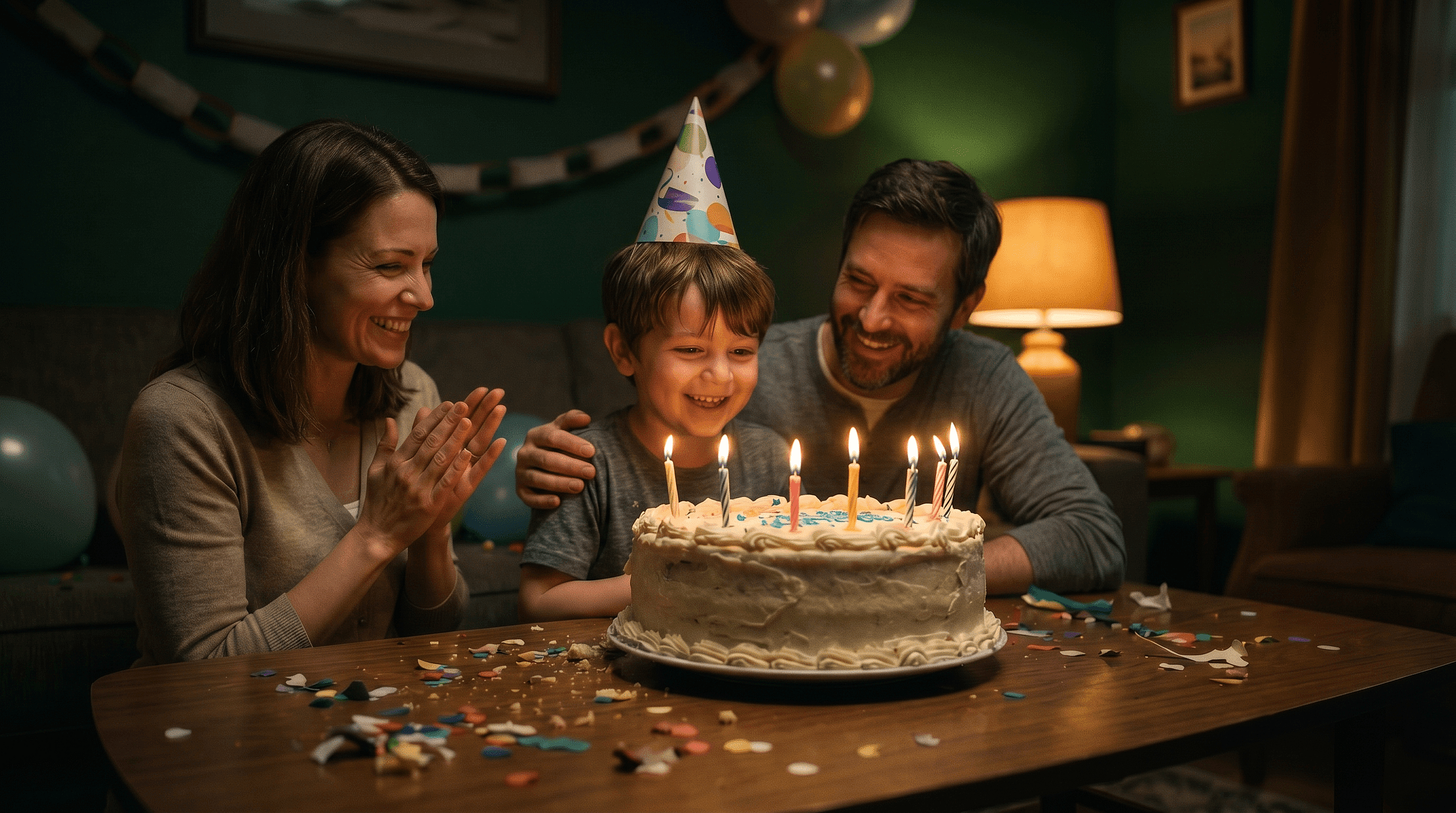
Remove Emoji from Photo
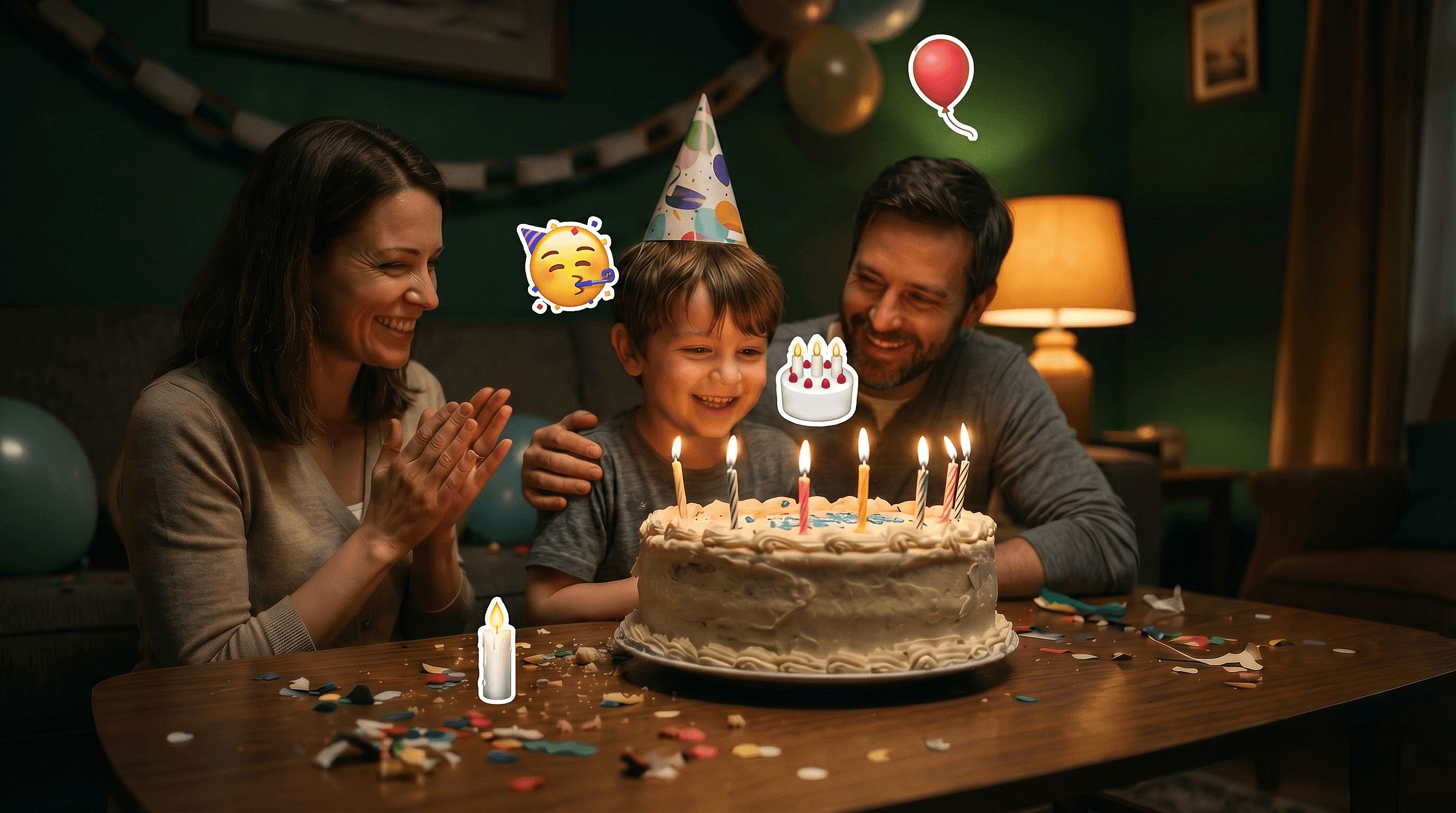
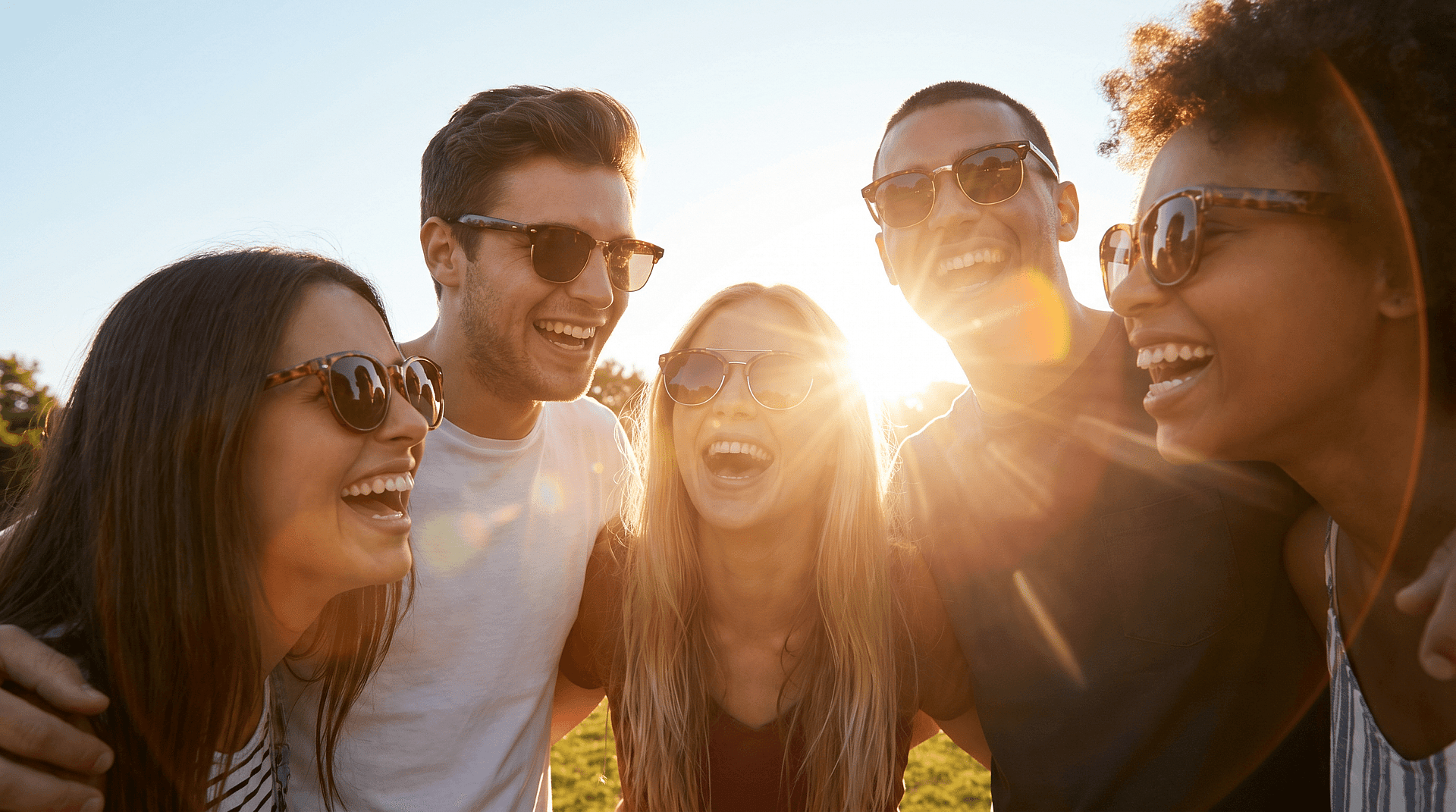
Got a photo with an emoji covering part of the image? Upload it to OpenArt and remove the emoji in seconds. The AI fills in the hidden area naturally, restoring faces, backgrounds, and details so the image looks clean and complete again.
 Add an image Or drag and drop here · JPEG, PNG, WEBP
 Remove Emojis Cleanly
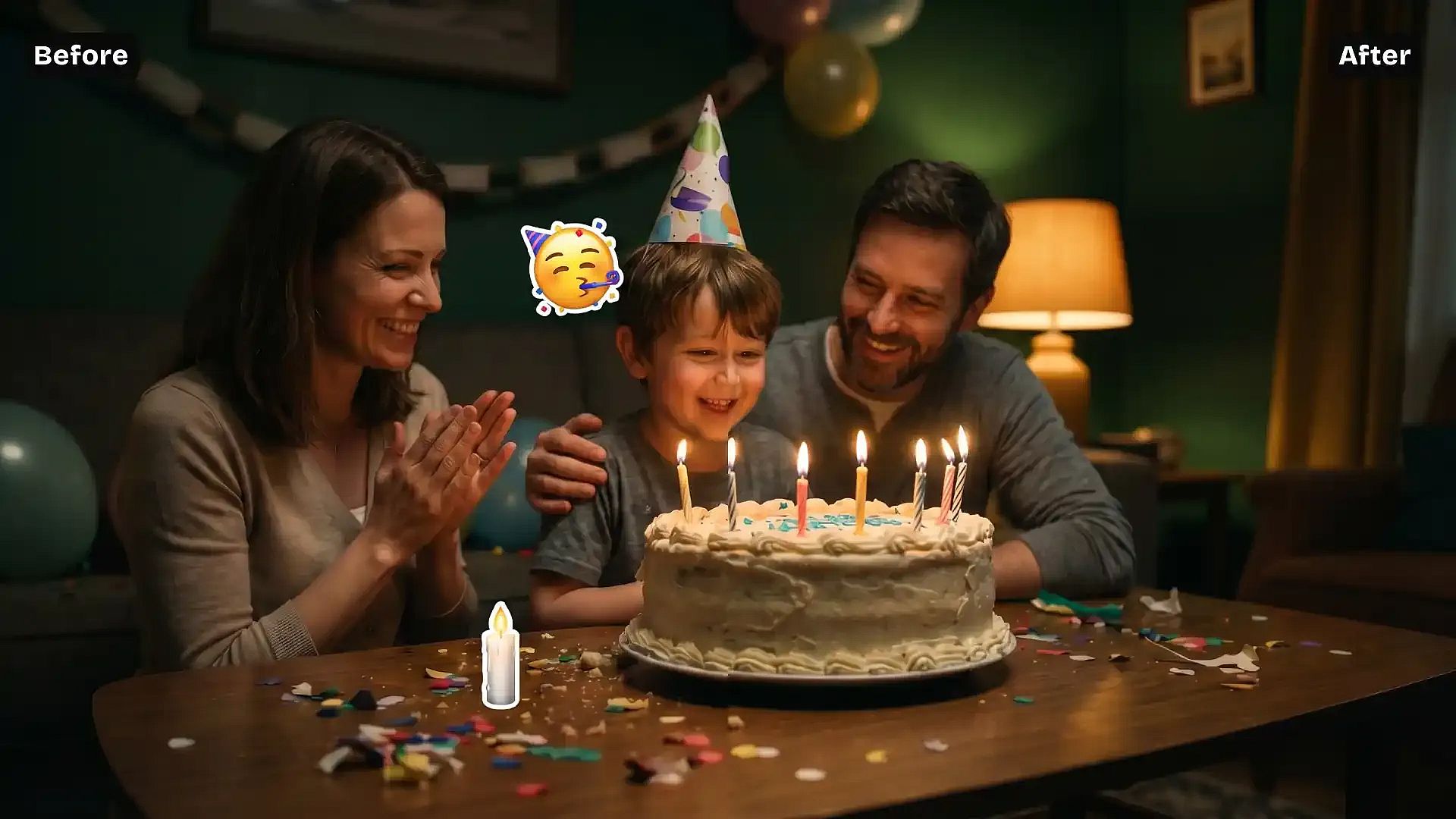
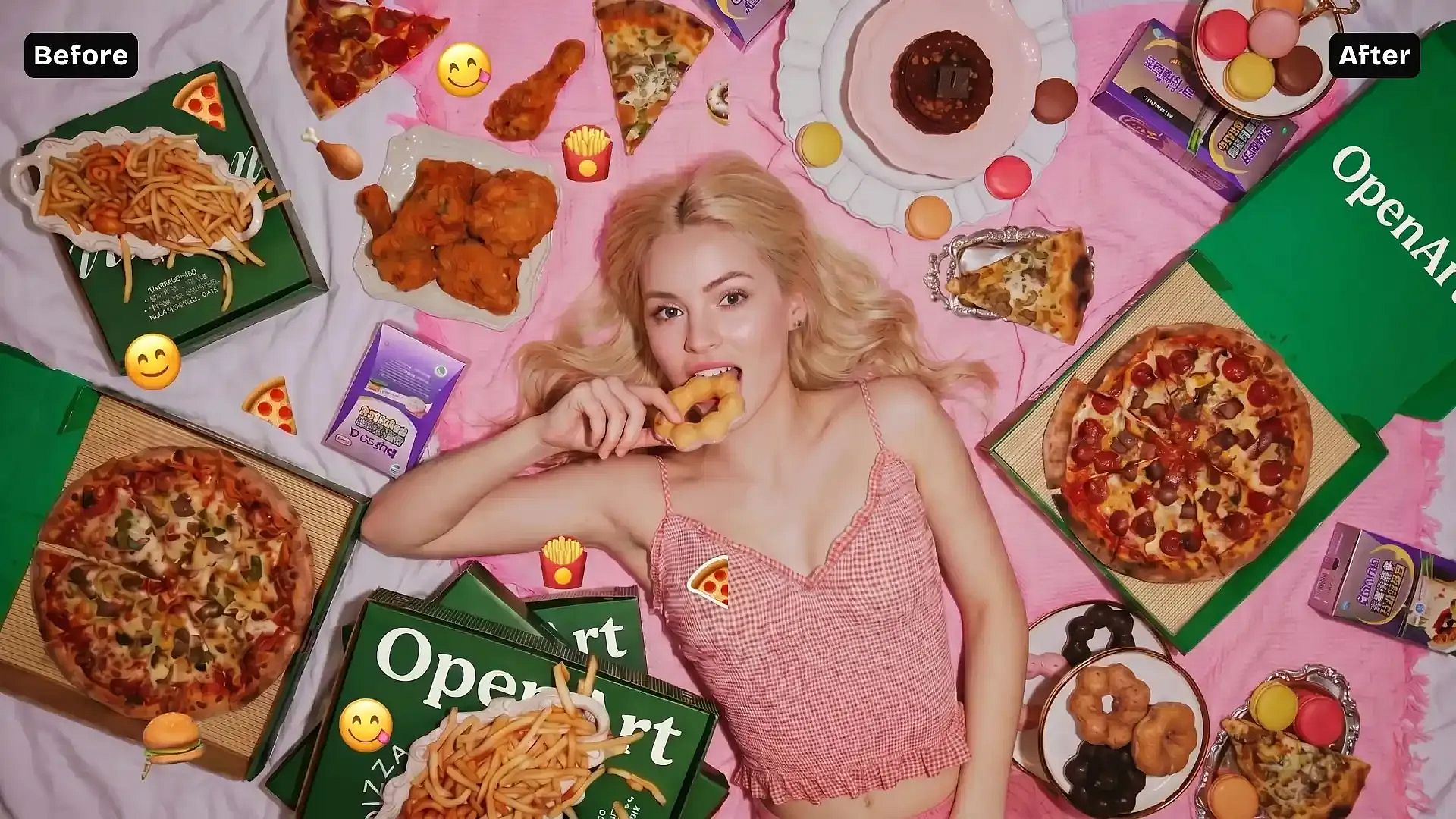
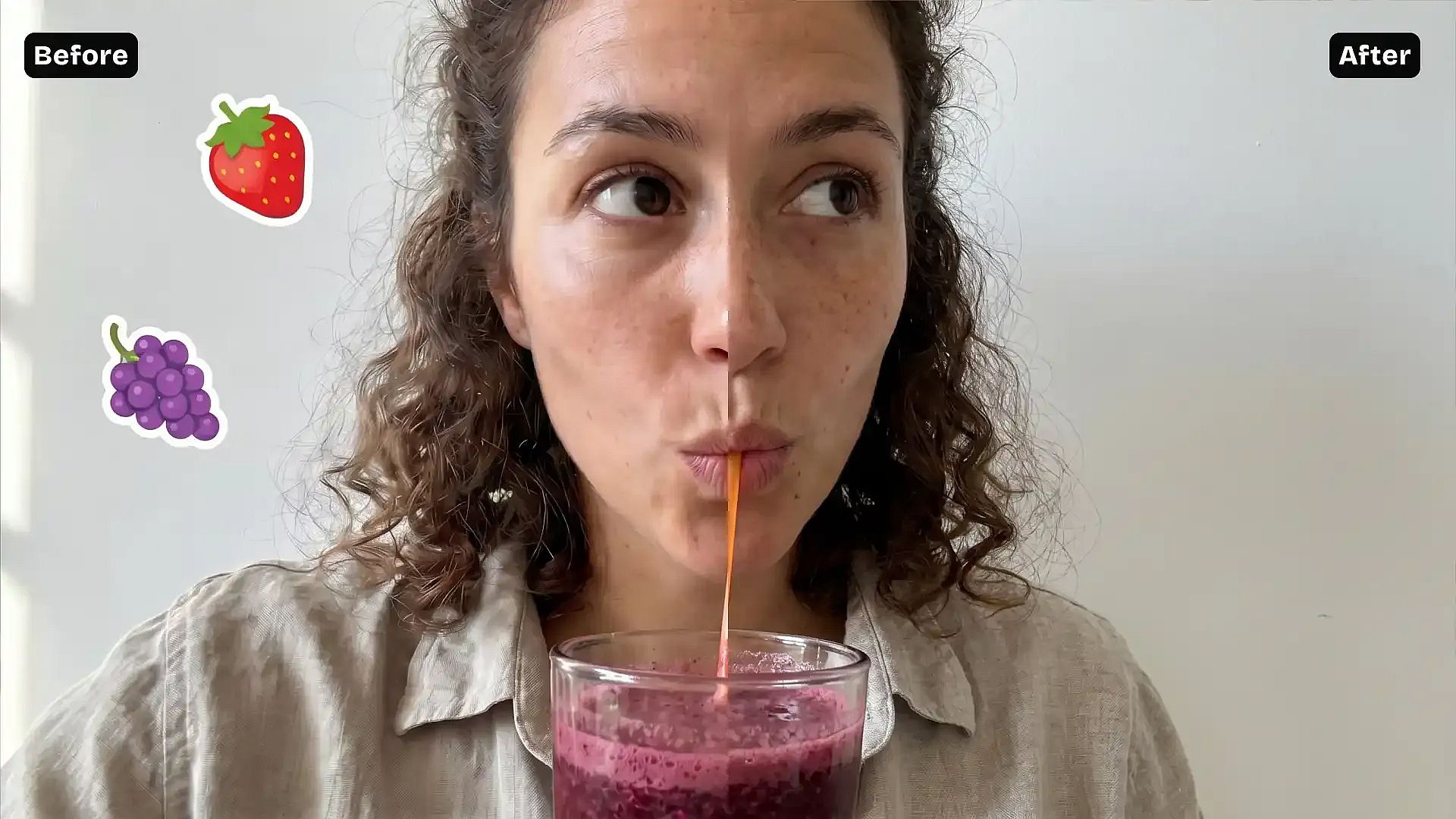
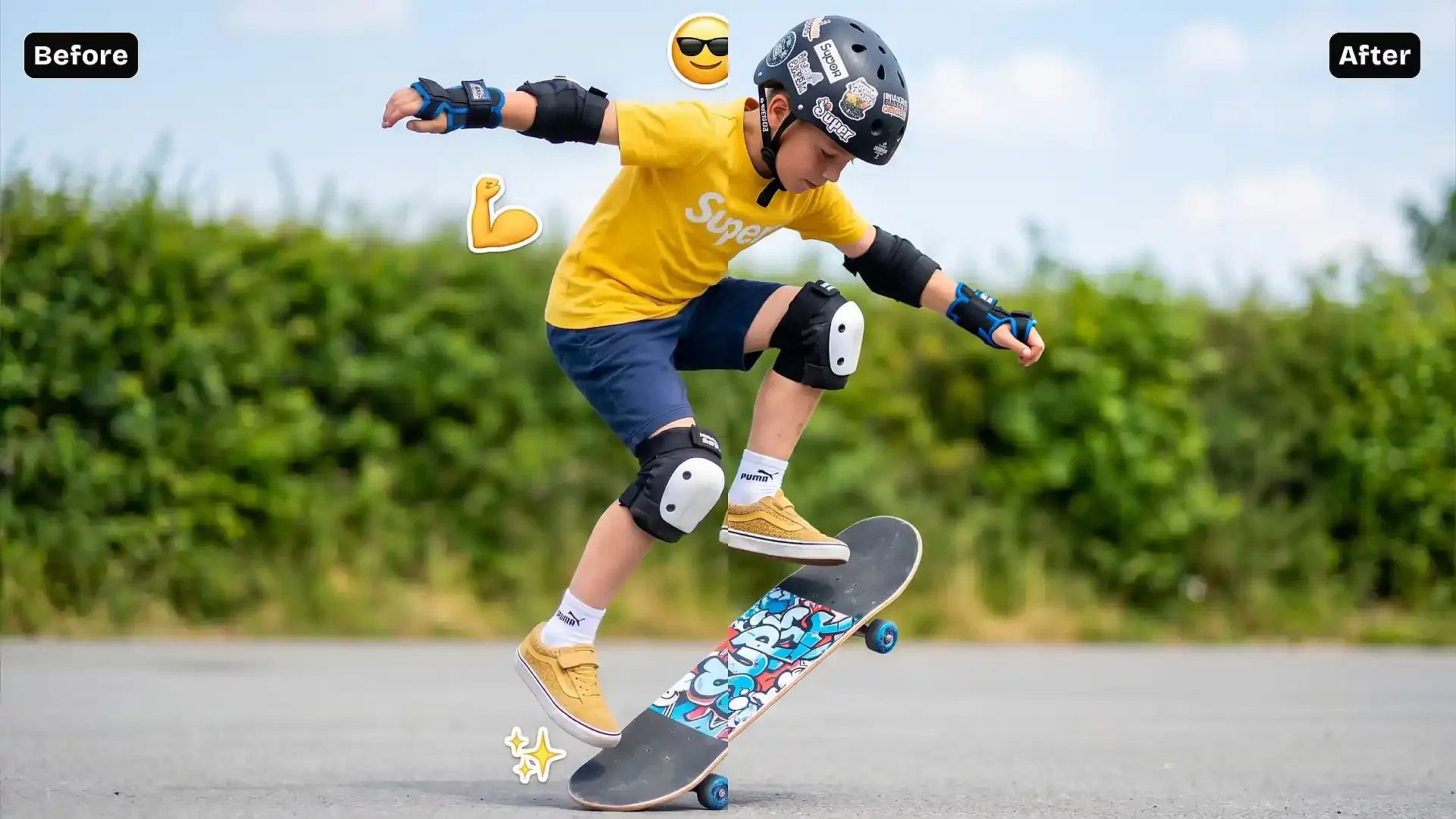
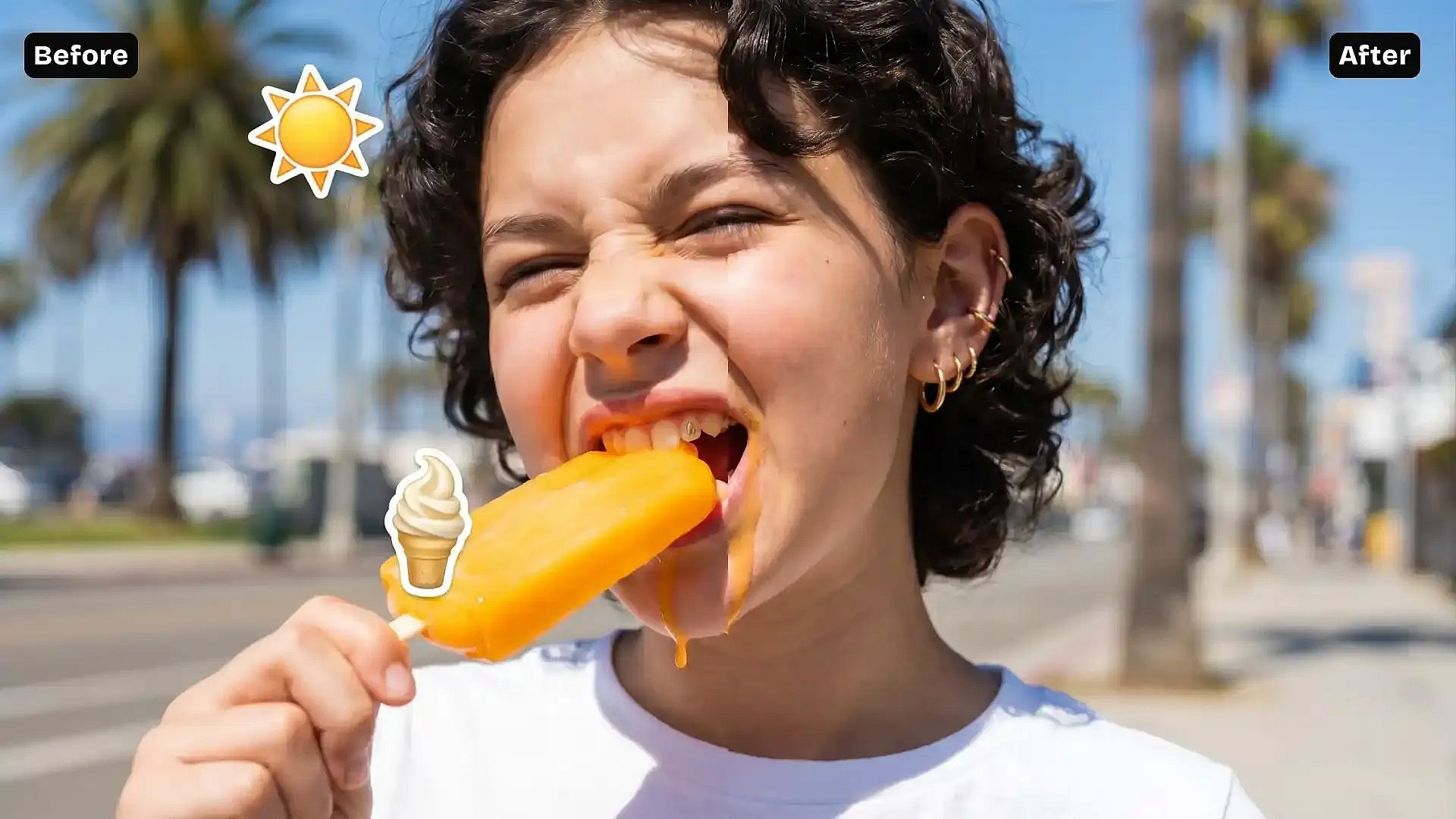
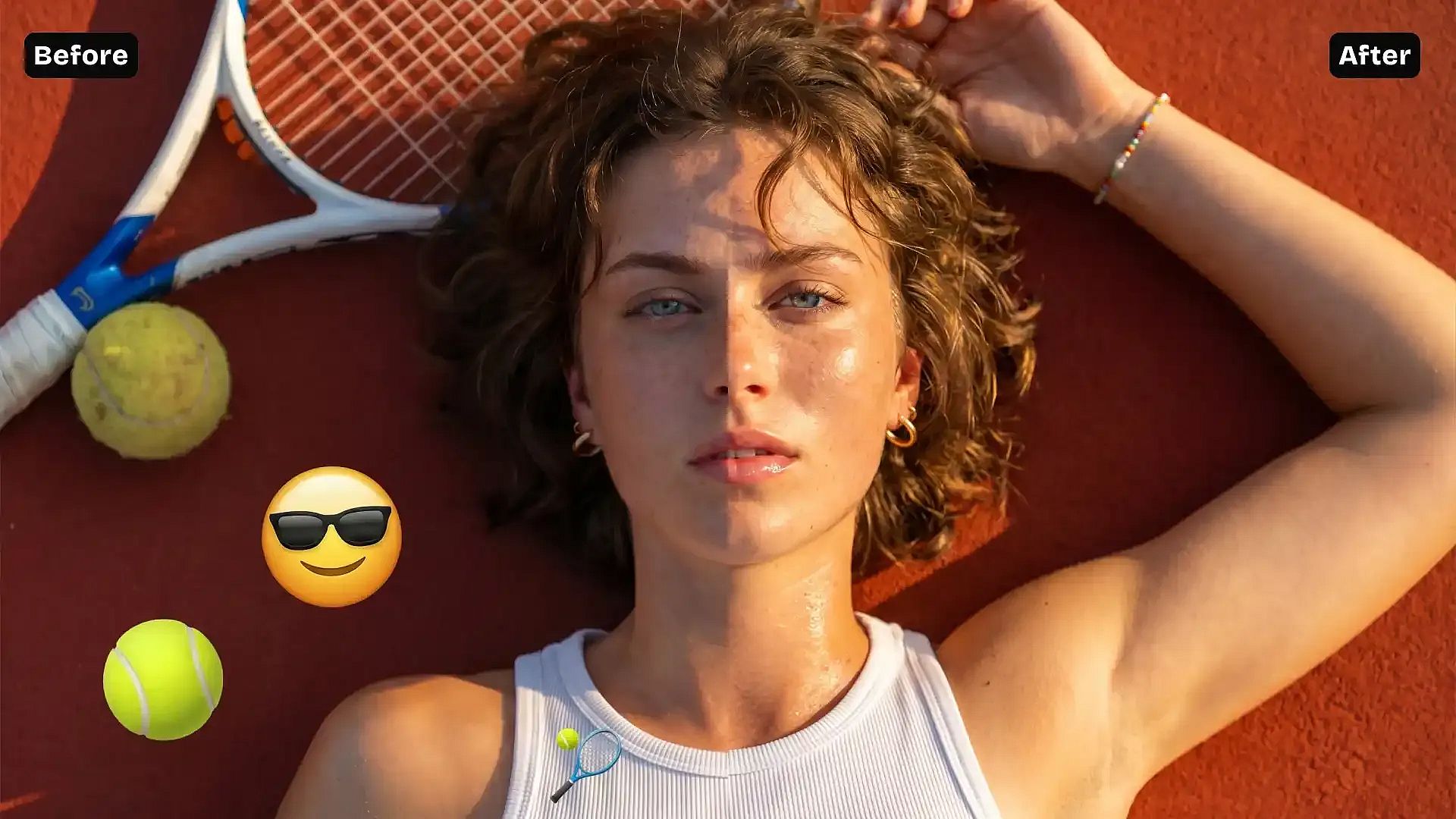
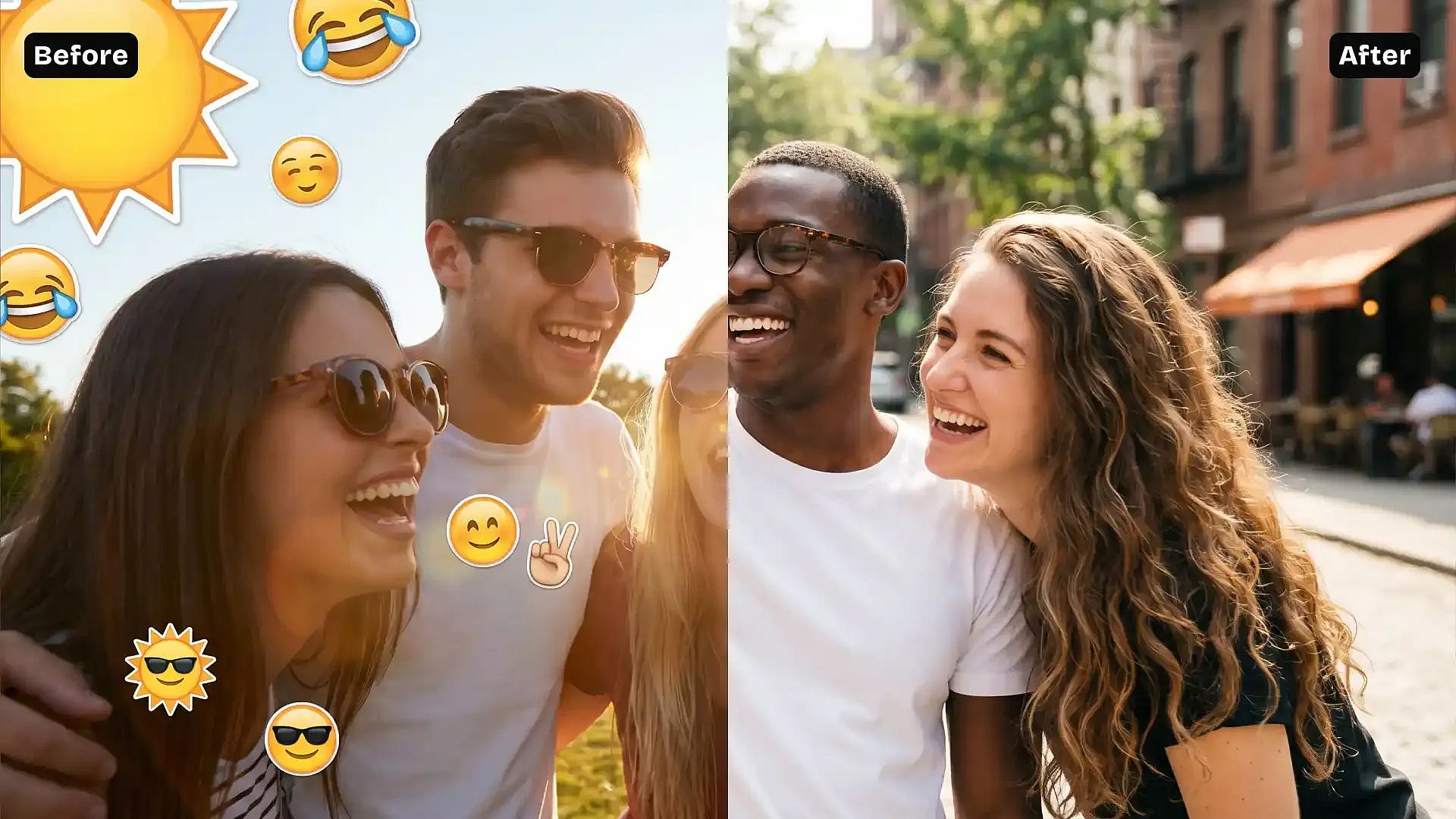
Easily remove emojis placed over faces or objects without leaving visible marks. The AI replaces the covered area so it blends with the rest of the image instead of looking edited.
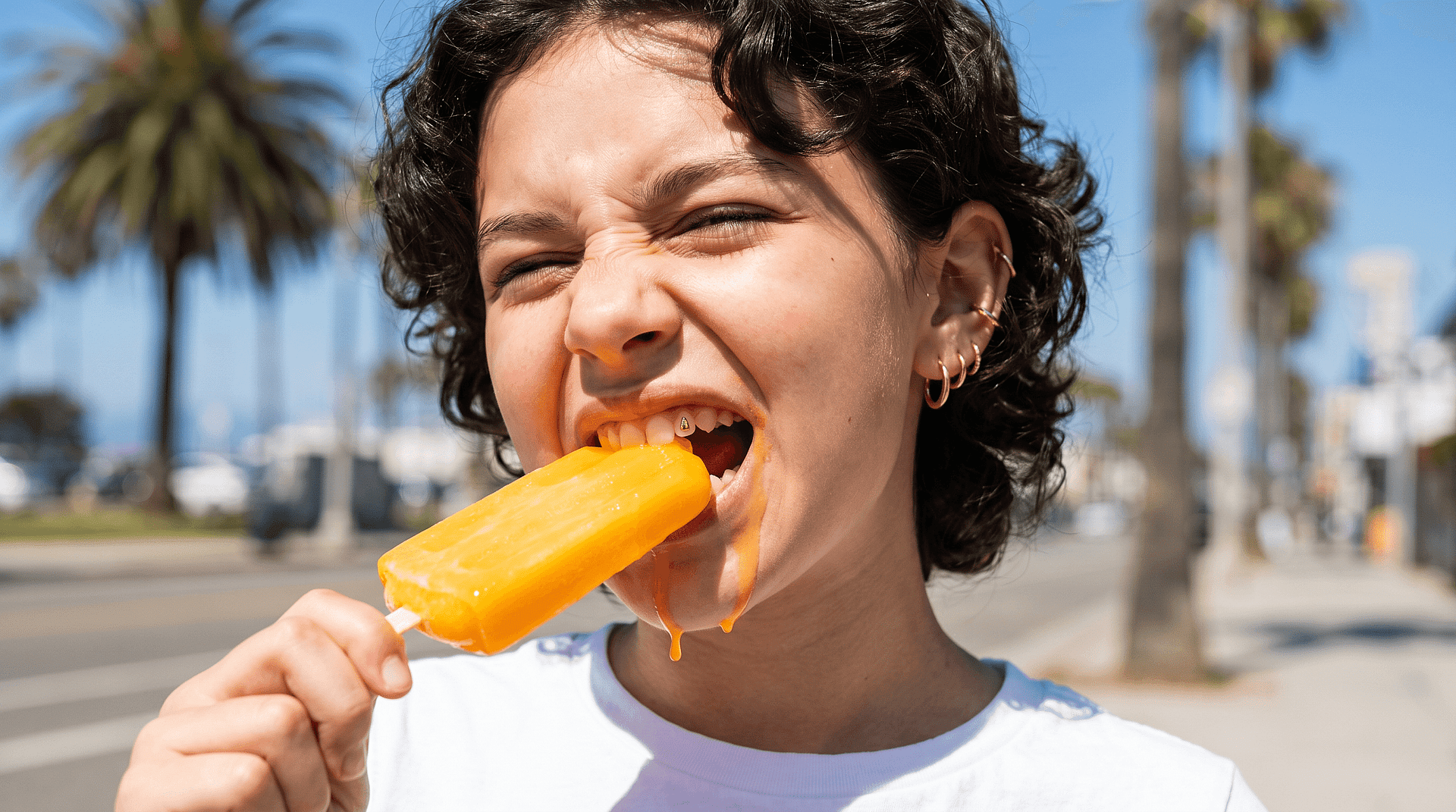
Restores Hidden Details
Instead of just deleting the emoji, the tool reconstructs what was underneath. This helps recover facial features, clothing, or background elements that were blocked.
Natural, Seamless Results
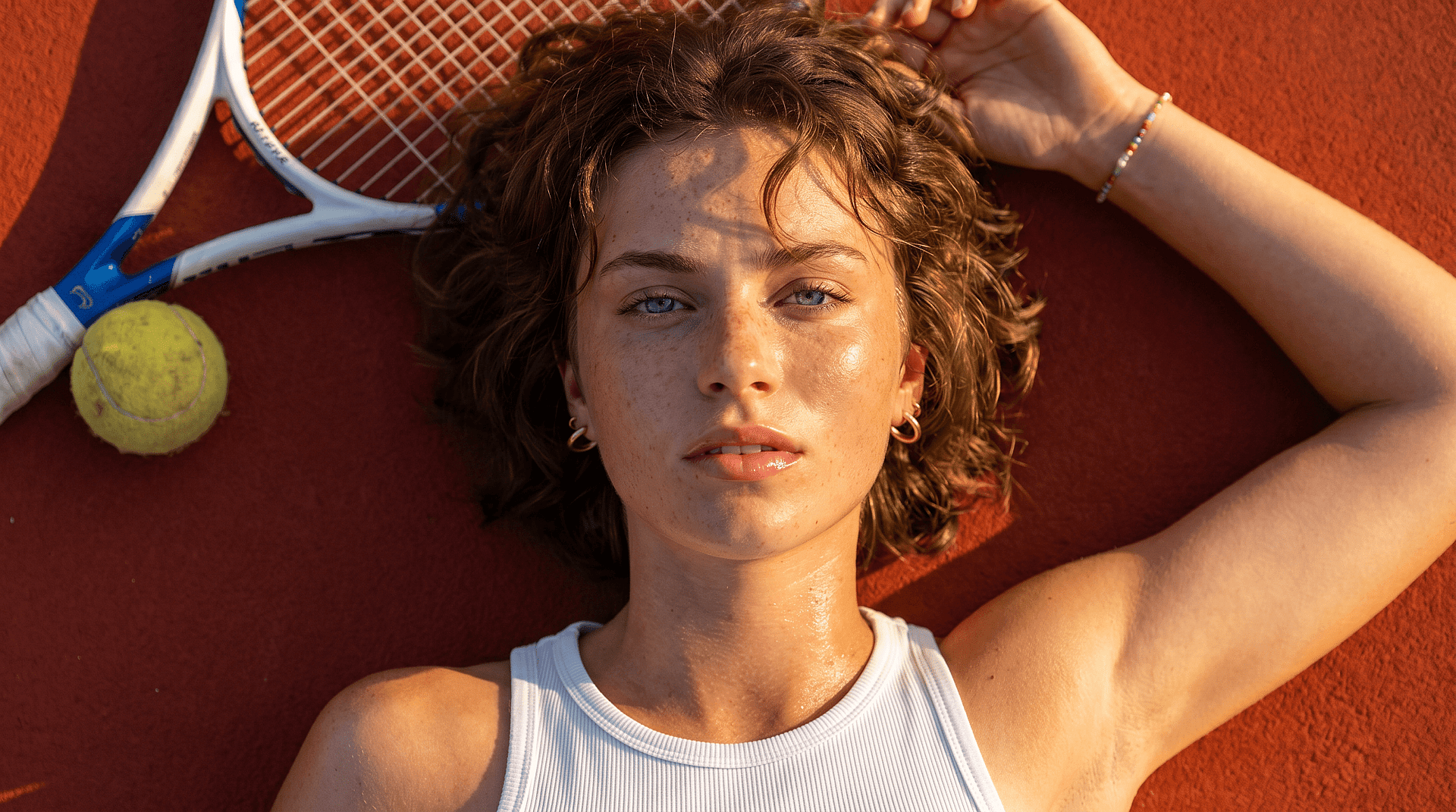
The edit matches lighting, texture, and color automatically. The final image looks consistent, without sharp edges or patches where the emoji used to be.
Community Creations
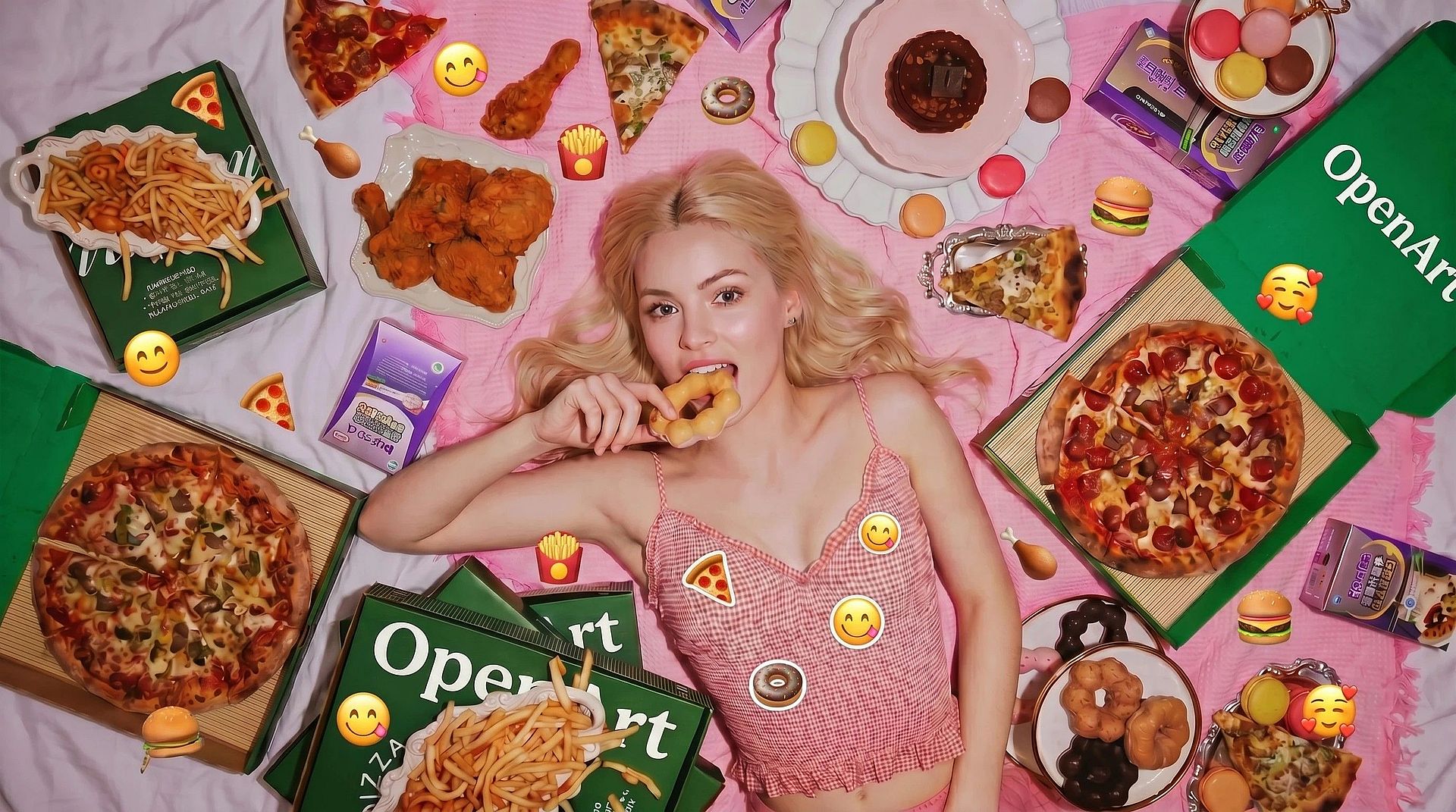
See how people are cleaning up their photos by removing emojis and restoring original details. From fixing old images to improving social media posts, explore how small edits can make a big difference.
Key Features of AI Emoji Removal Tool
OpenArt's AI image editor uses advanced models like GPT Image 2.0, Nano Banana Pro, and Recraft V4 to generate realistic edits with accurate detail and consistency. This allows removed areas to be reconstructed naturally instead of leaving gaps.

Smart Object Removal
Select the emoji area and remove it in one step. The AI understands the surrounding context and fills in the missing part so the image looks complete.
Try it Now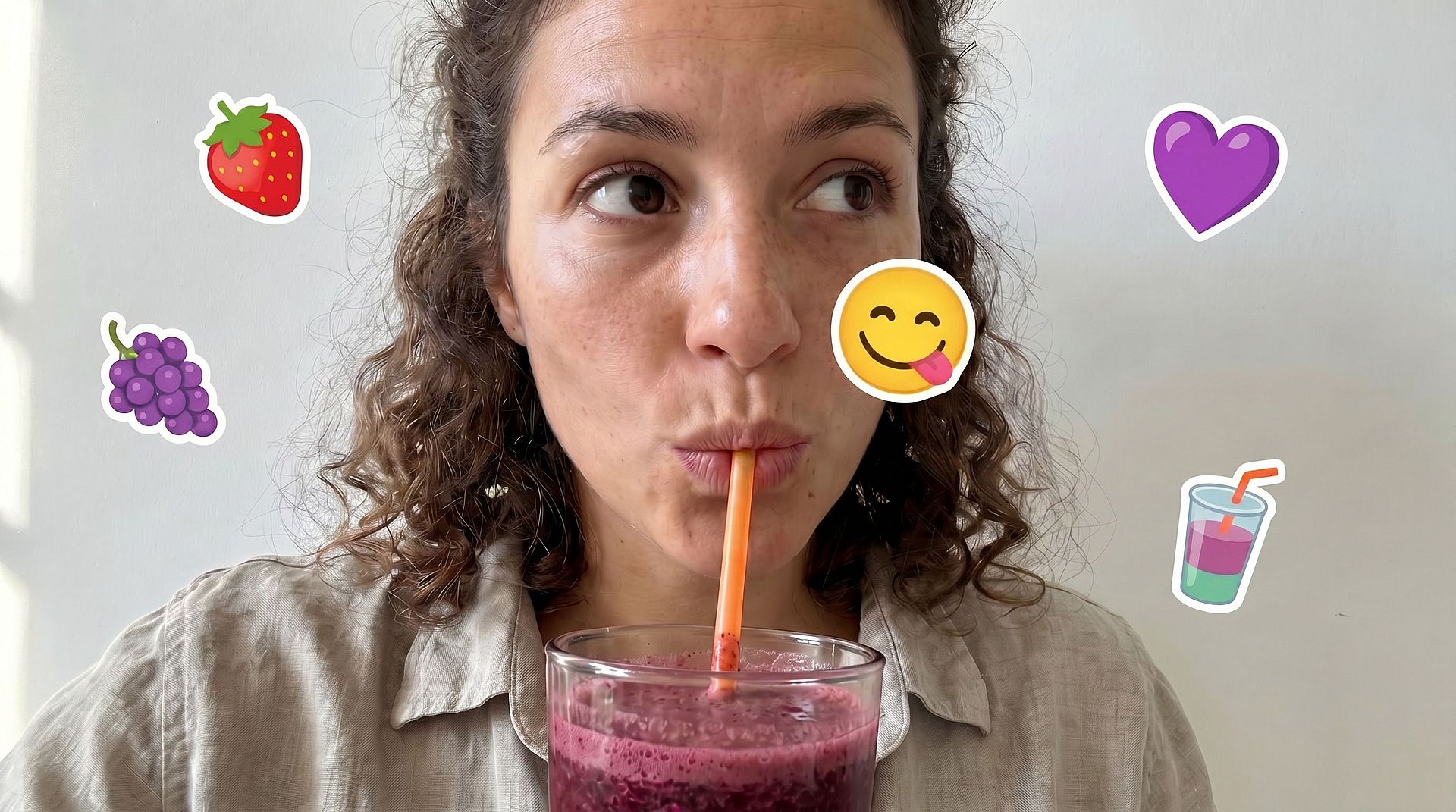
Face and Detail Reconstruction
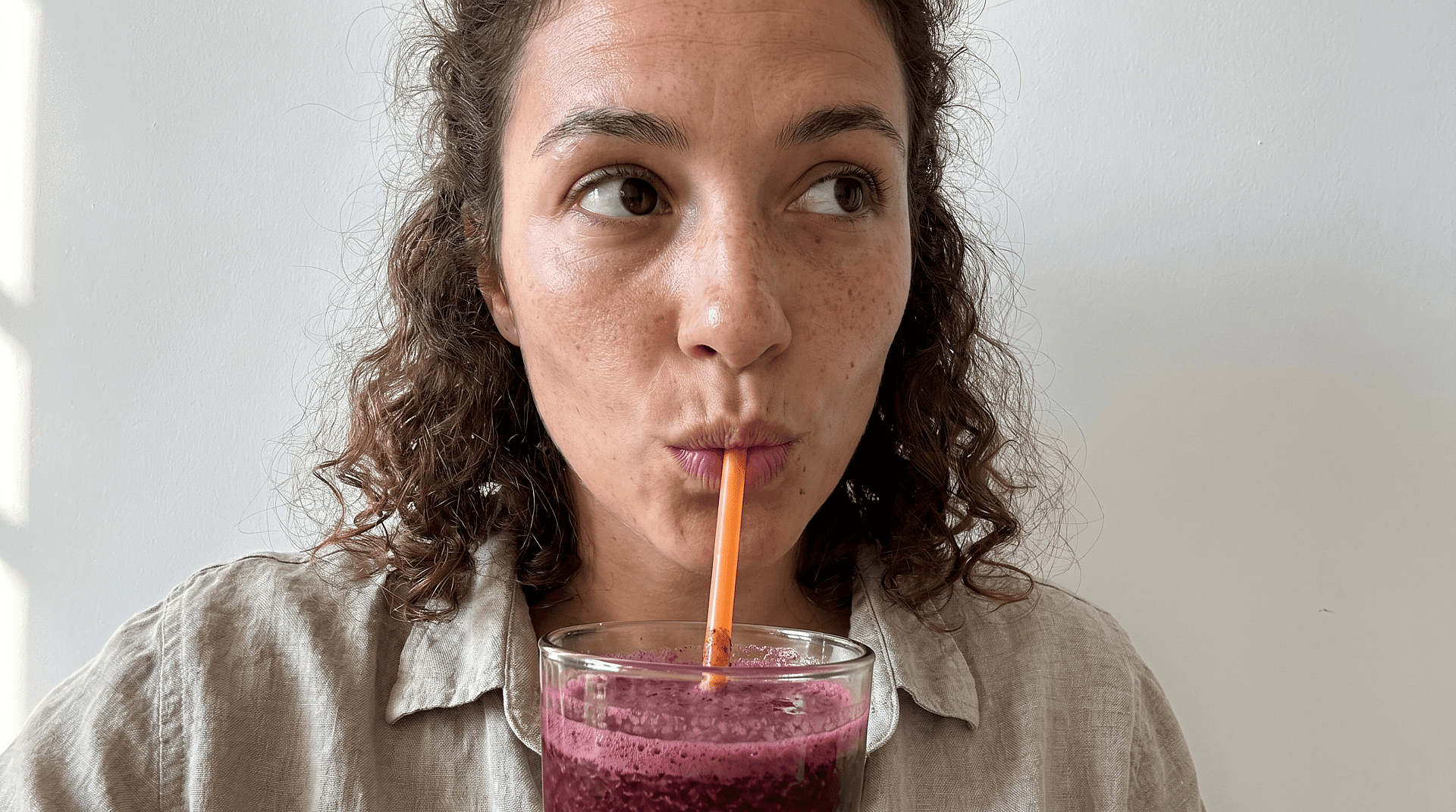
If an emoji is covering a face, the AI attempts to restore facial features like eyes, skin texture, and expressions based on surrounding information. This helps recover a more natural-looking portrait.
Try it Now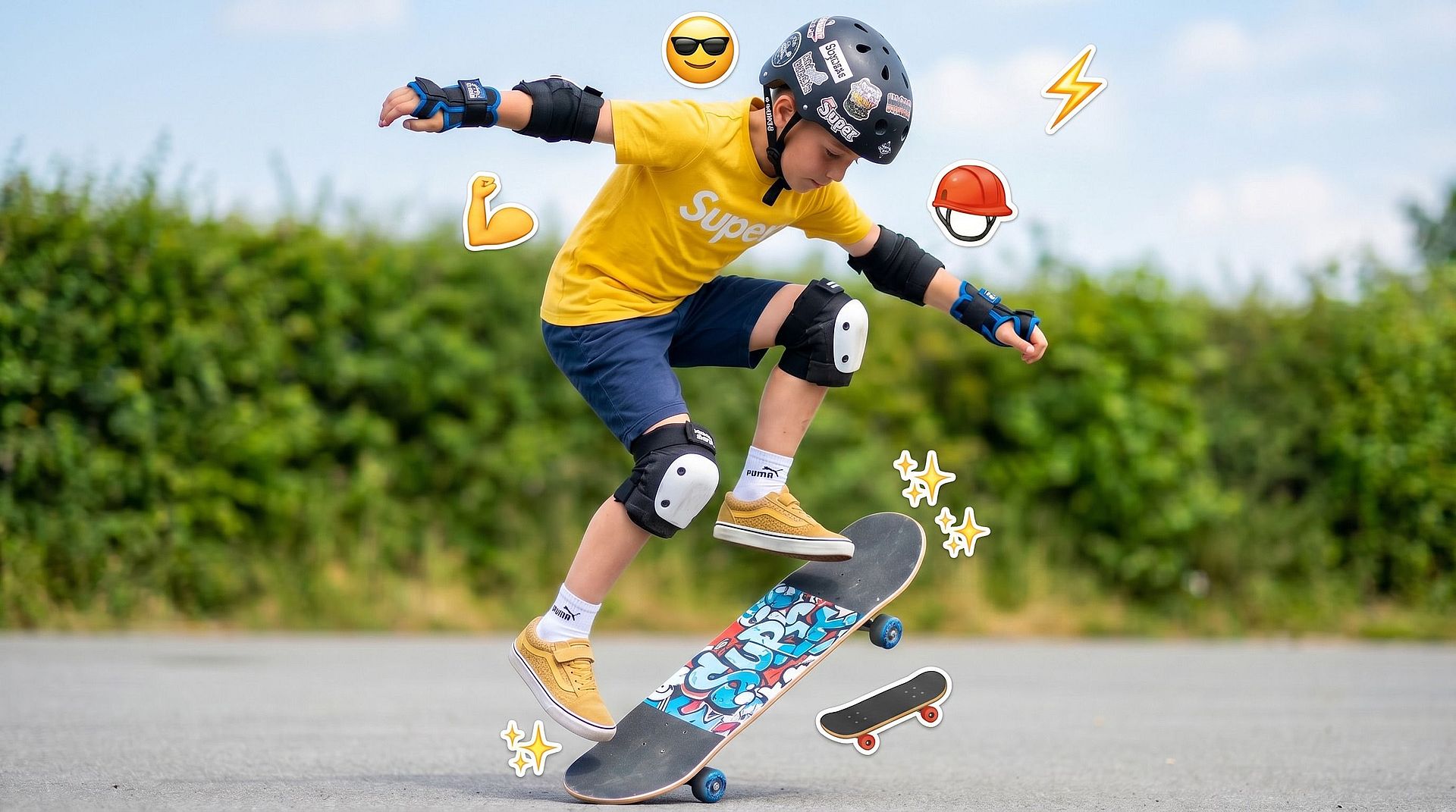
Seamless Background Fill
For emojis placed on backgrounds, the tool rebuilds textures like walls, skies, or surfaces so there are no visible edits or distortions.
Try it Now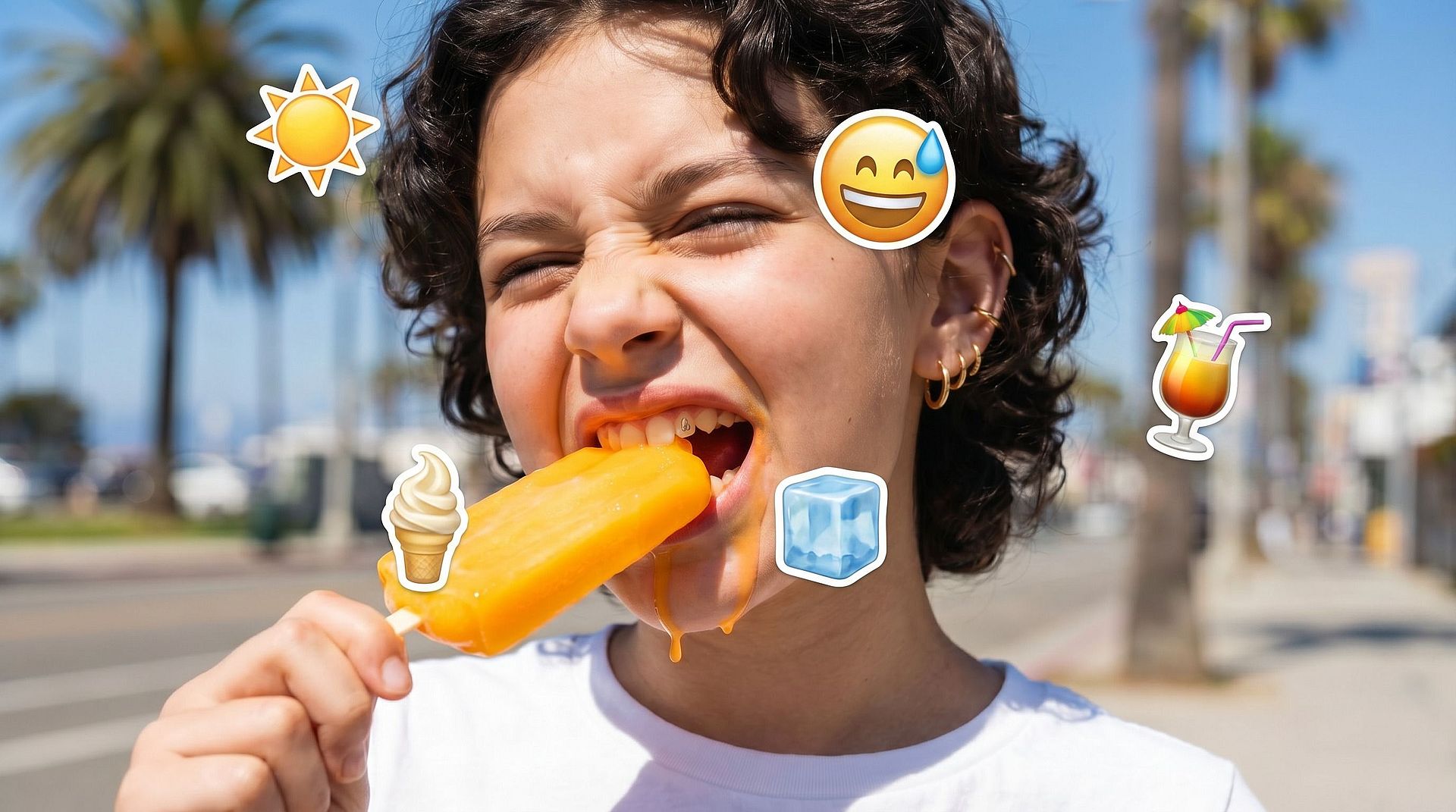
Refine and Adjust Edits
You can reapply or refine the edit if needed, making small adjustments to get a cleaner and more accurate result.
Try it NowHow to Use the Emoji Removal Tool
Remove emojis from your photo in just a few simple steps.
Upload Your Photo
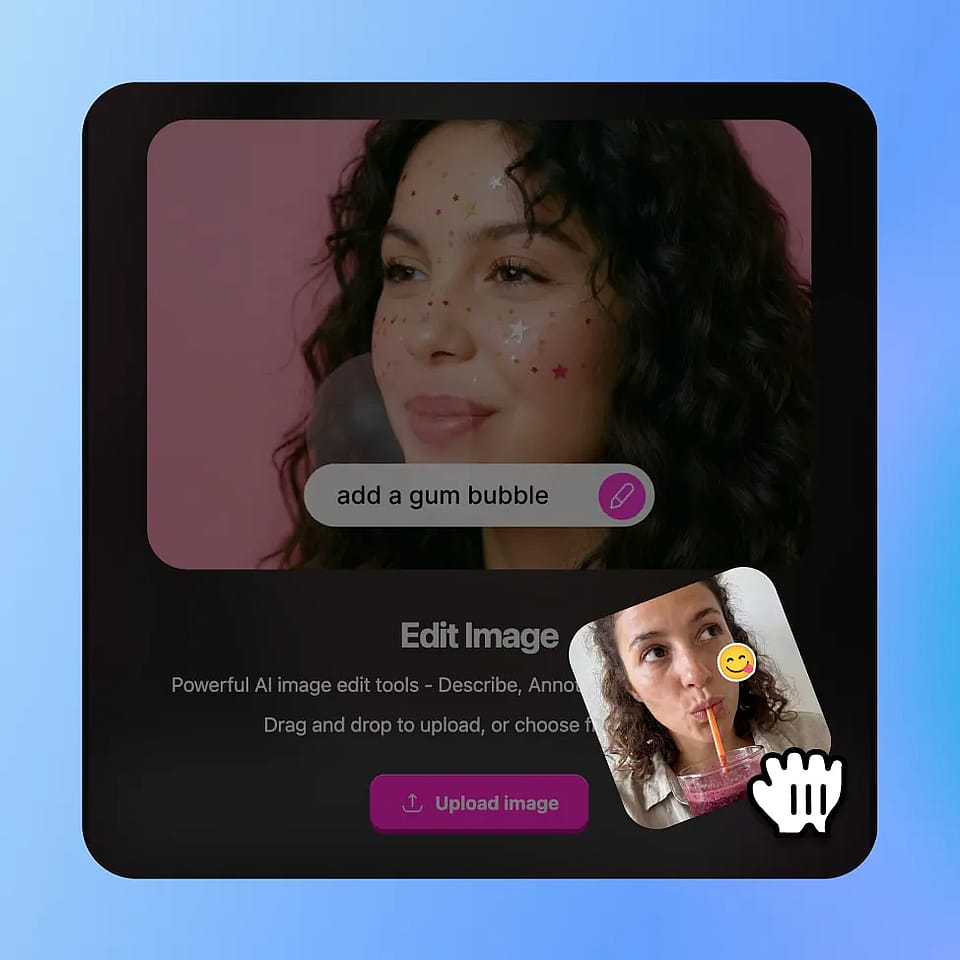
Go to OpenArt’s Image tools and select the “edit image” mode. Upload your image.
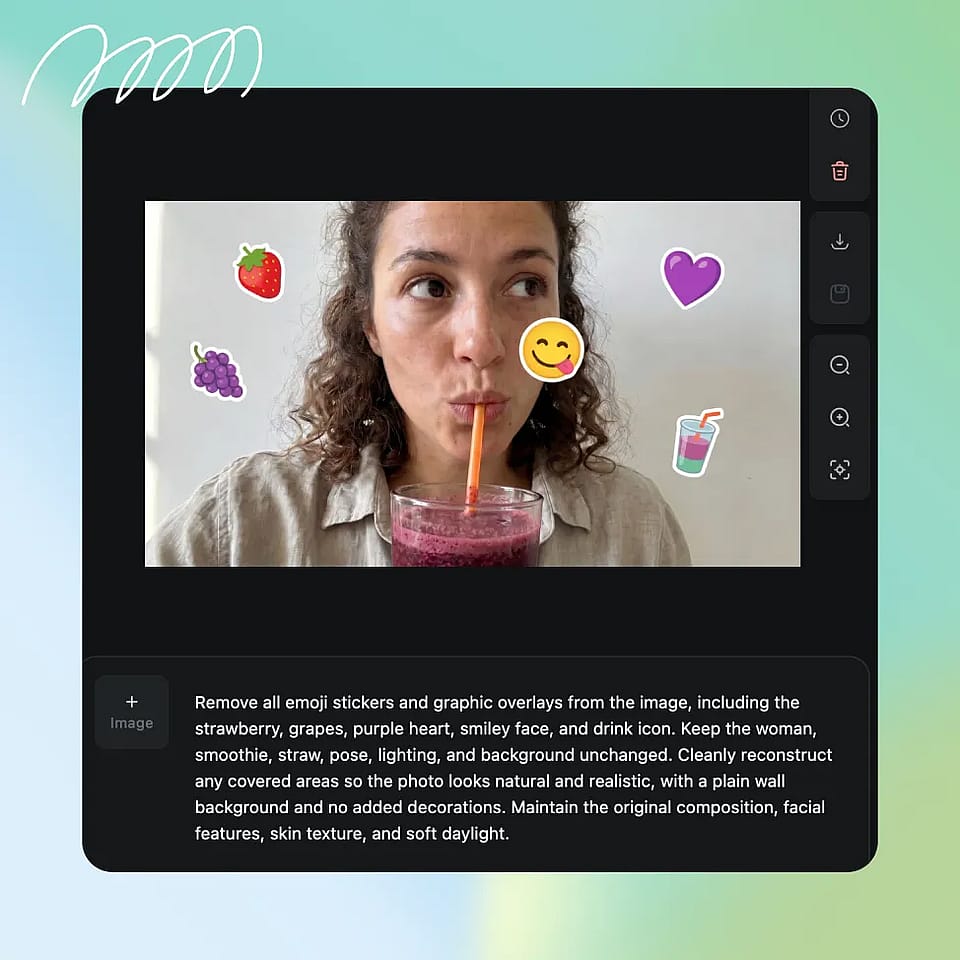
Select the Emoji Area
Highlight the emoji or covered area you want to remove.
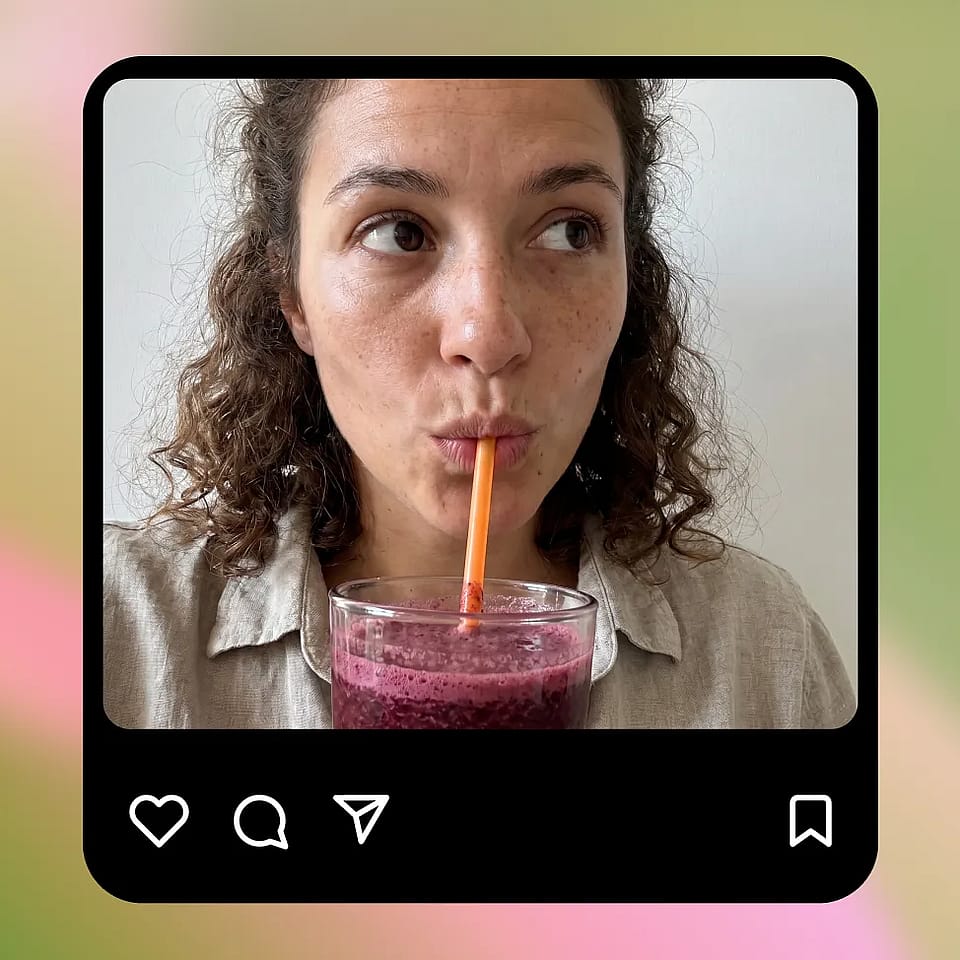
Generate and Refine
Apply the edit and review the result. Refine the selection if needed to improve accuracy.
Built for Cleaning and Restoring Photos
Fix edited or covered images and recover original details quickly without manual editing.
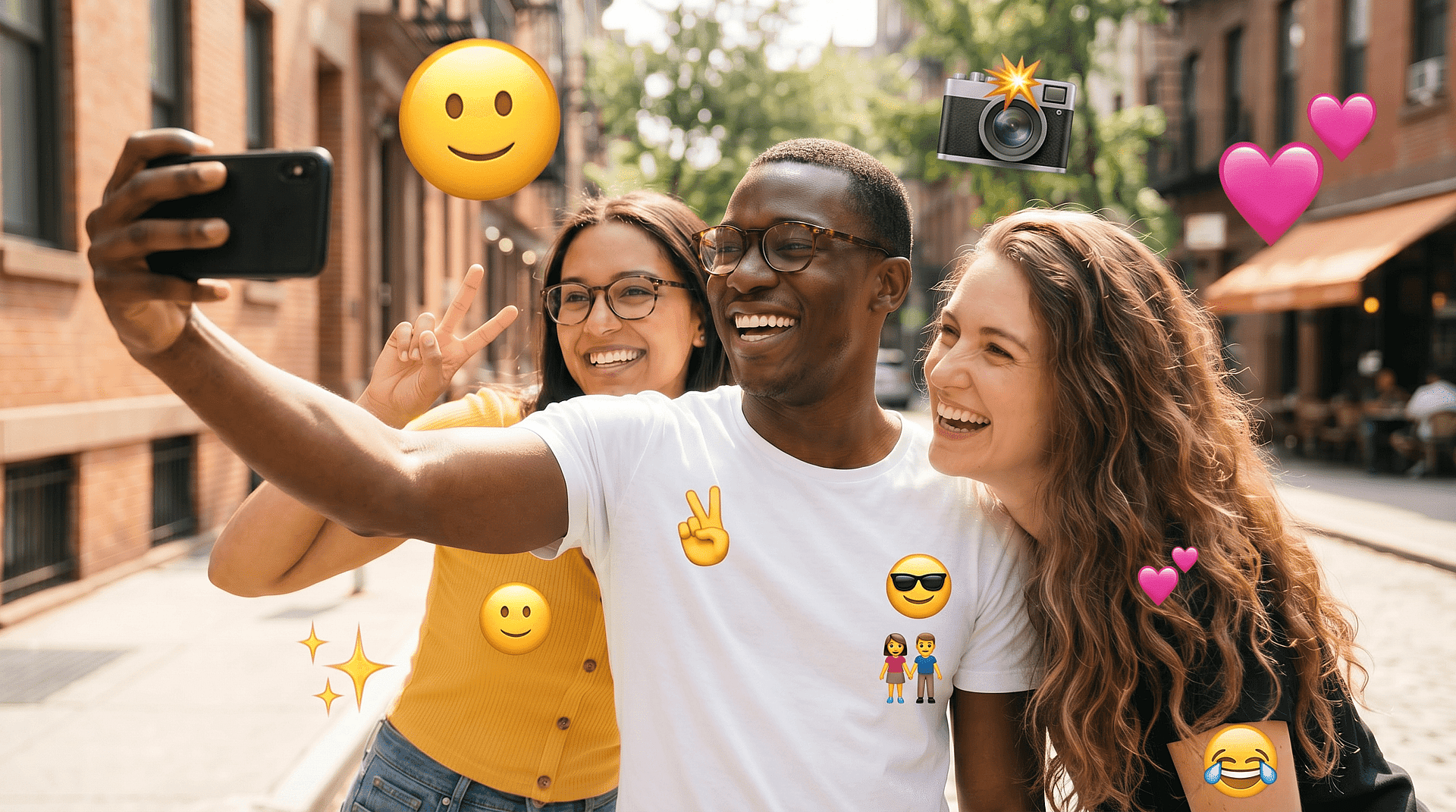
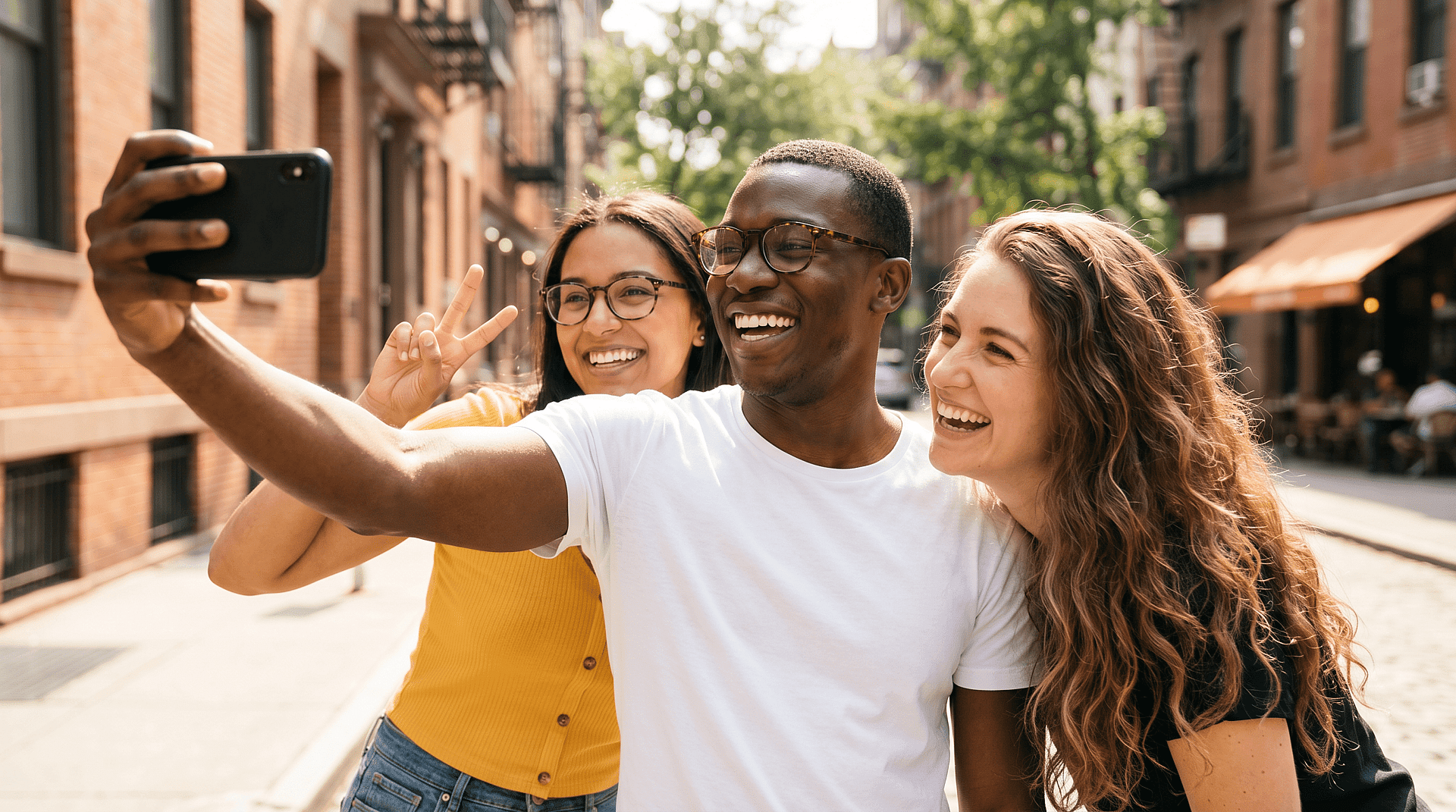
Fixing Social Media Photos
Remove emojis added for privacy or fun and restore the original image. This is useful if you want a cleaner version for reposting or personal use.
Try it Now

Restoring Old or Edited Images
Bring back photos where emojis were used to cover parts of the image. The tool helps rebuild those missing areas so the photo looks complete again.
Try it Now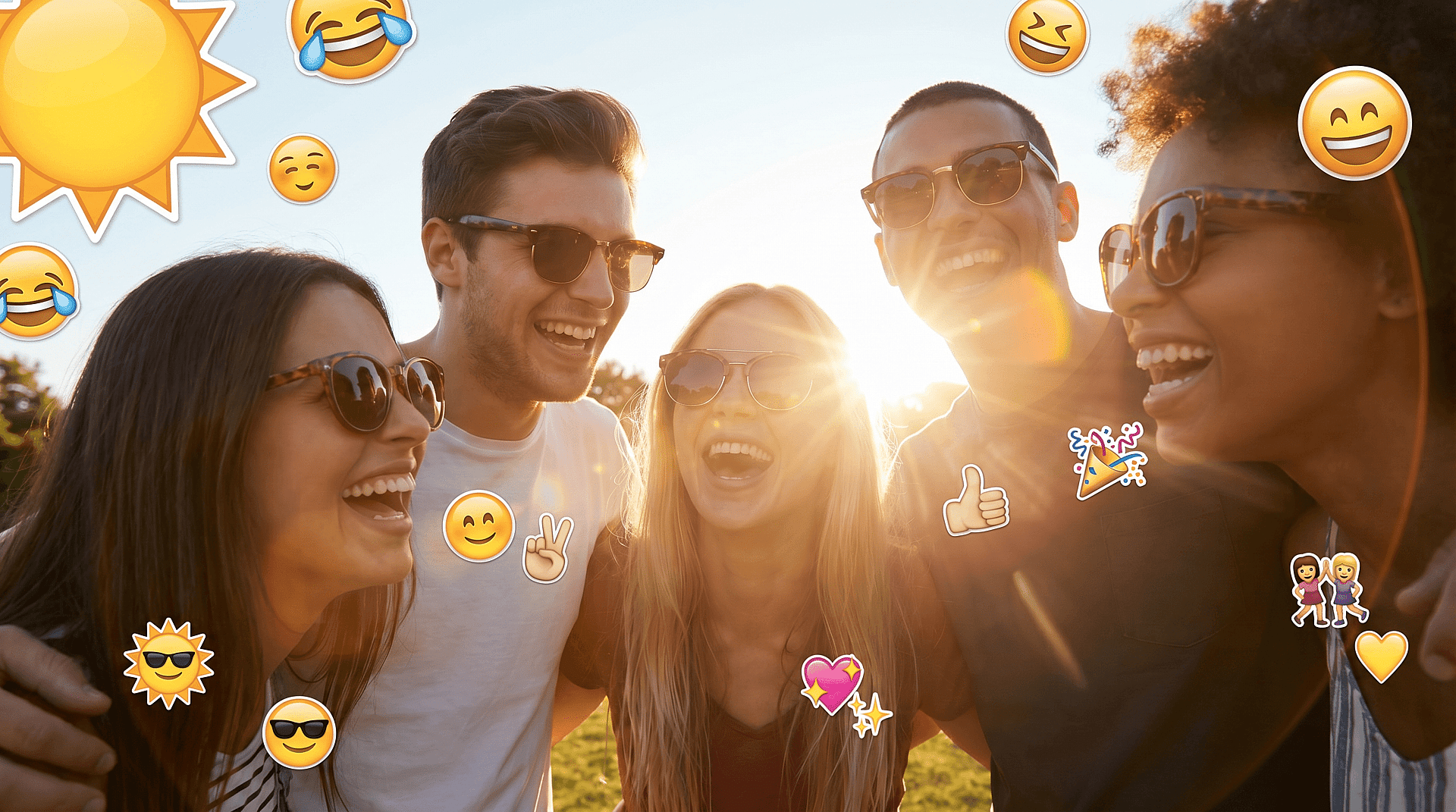
Improving Profile and Personal Photos
Clean up images for profile pictures or personal use by removing overlays that distract from the subject.
Try it Now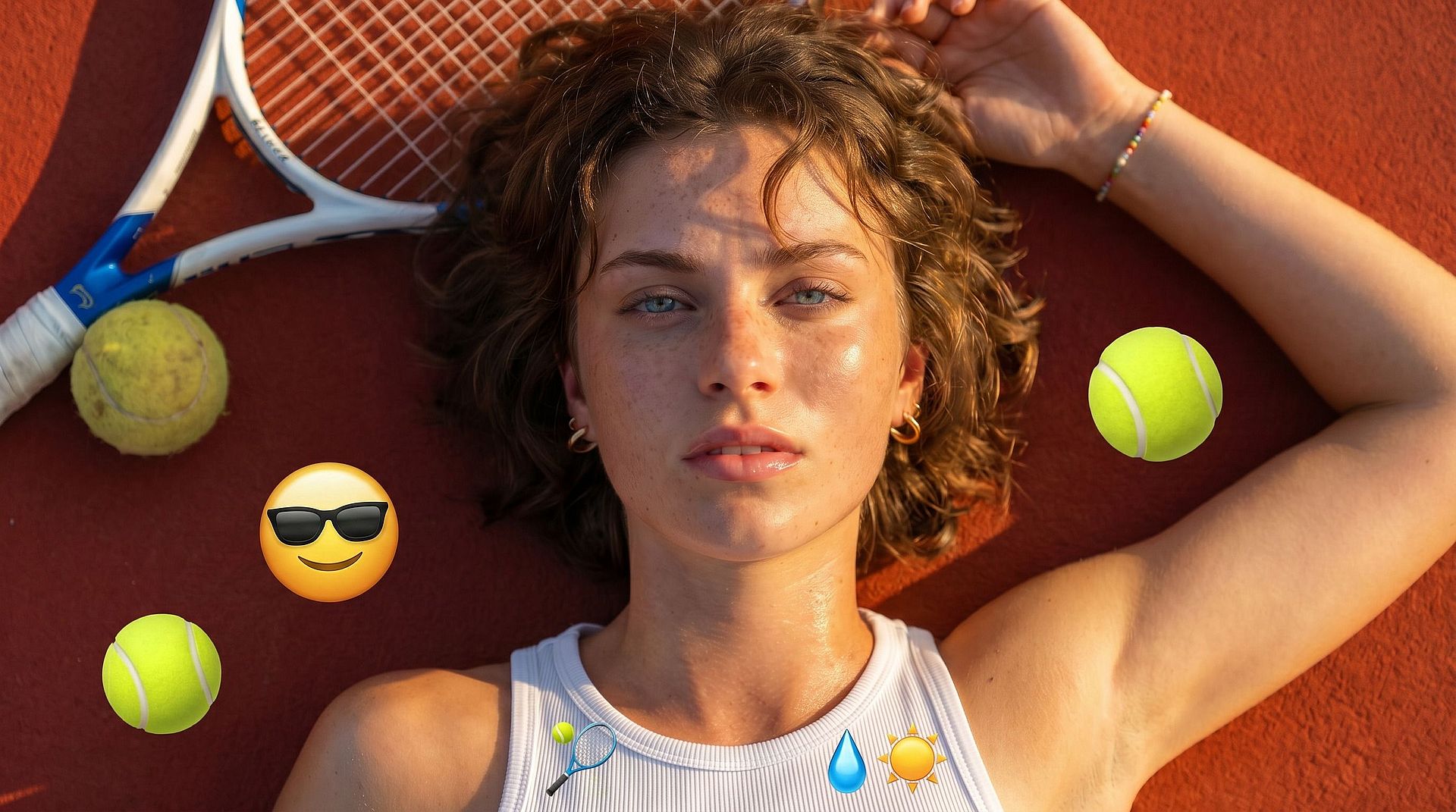
Content Creators and Image Cleanup
Quickly clean up images for thumbnails, posts, or visual content. This saves time compared to manual editing and produces more natural results.
Try it NowFrequently Asked Questions
Get Insights from Experts Blog
Get the insights you need. Our experts share actionable hacks, break down the hottest topics, and provide essential how-to guides to help you build, optimize, and scale.
Read More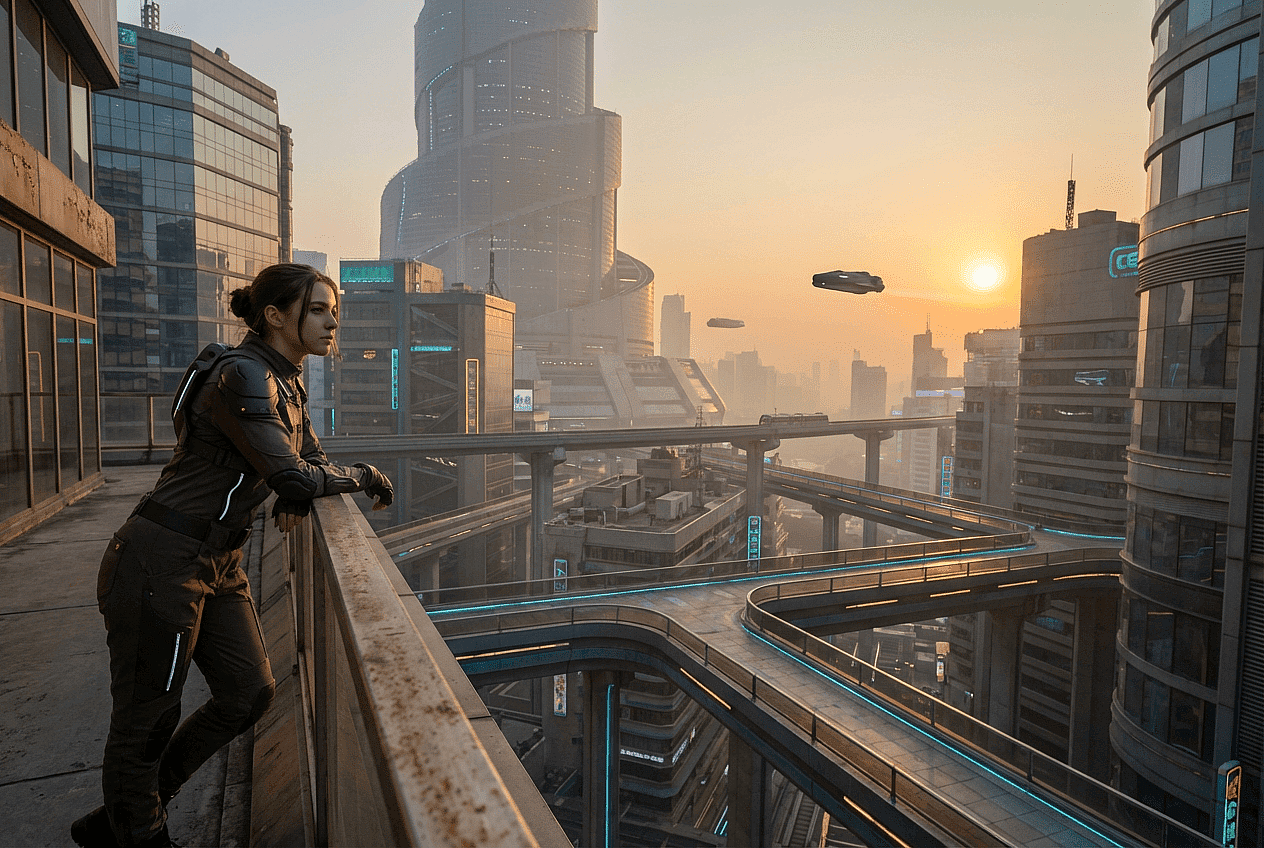
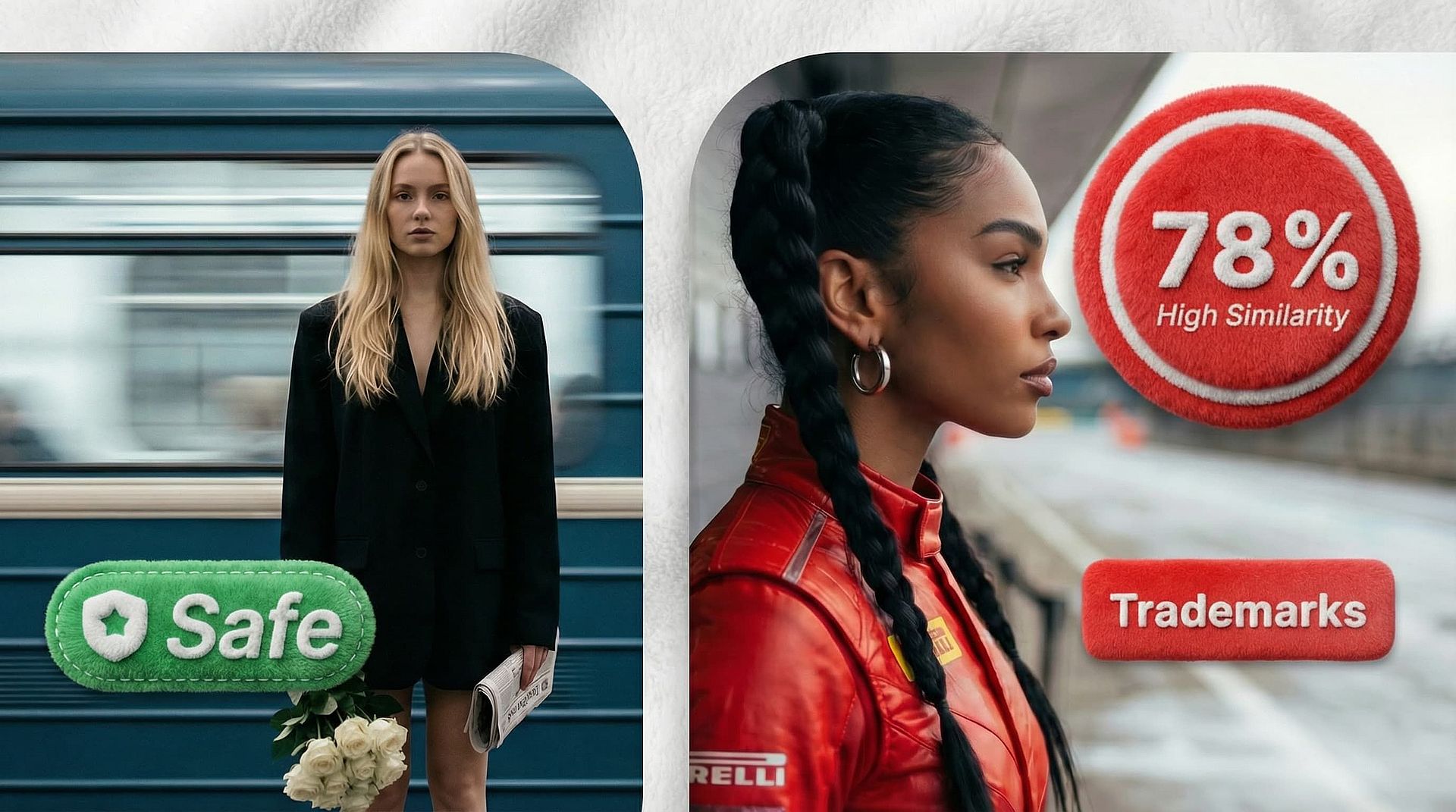
Create without limits
Join millions of creators using OpenArt to generate images, videos, characters, and stories - all in one platform.
Get Started for Free →