
 ChatGPT
 Perplexity
 Claude
 Gemini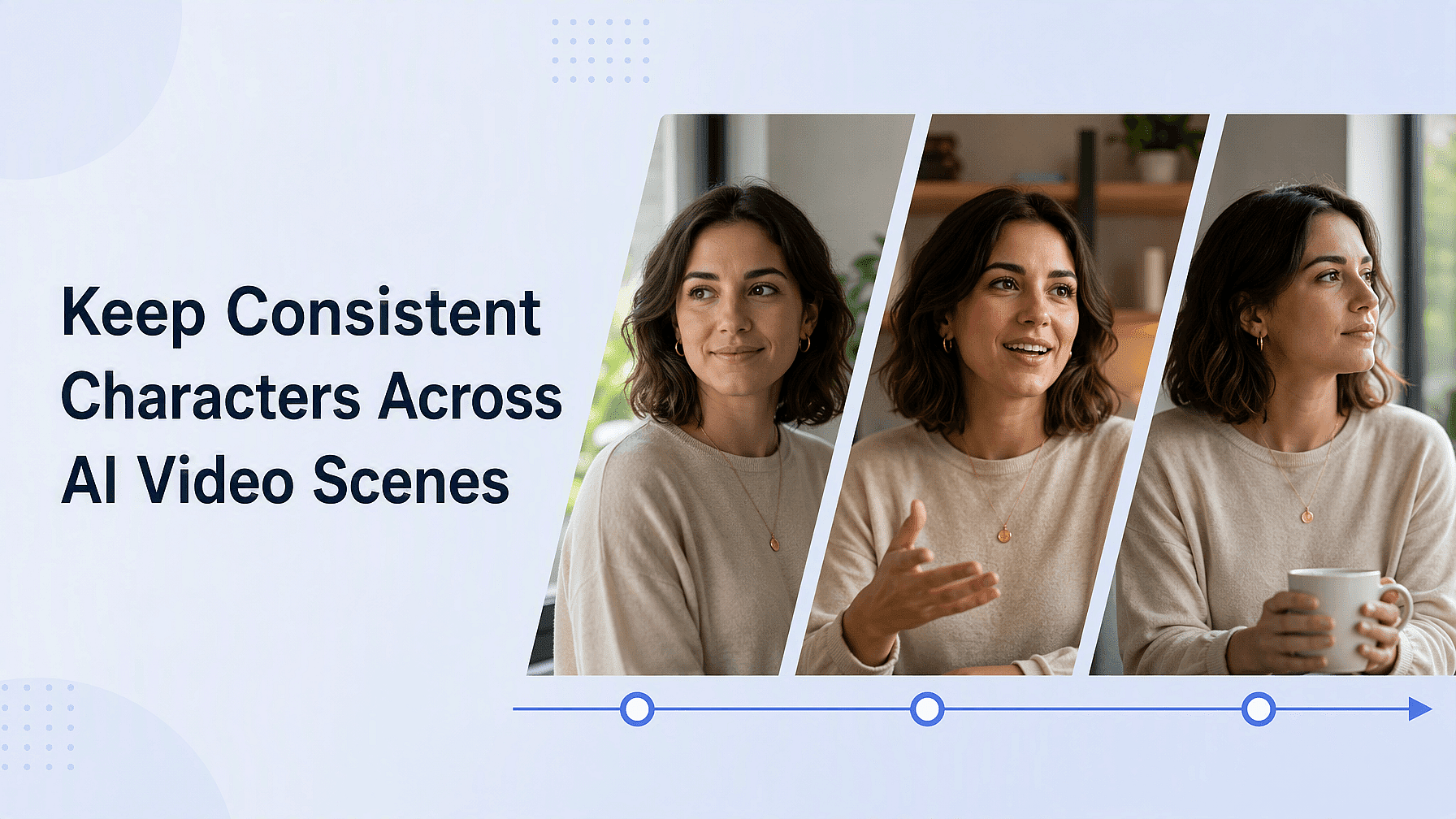
Haces un gran clip de tu personaje. Luego haces el siguiente y ella vuelve con otra nariz, otro pelo y una chaqueta que nunca llevaba.
Esto es lo que más impide que la gente cree historias de verdad con vídeo de IA. Aquí te explicamos por qué ocurre y los pasos exactos para solucionarlo.
Conclusiones clave
- Los modelos de vídeo con IA no tienen memoria, así que cada clip crea una persona completamente nueva.
- Fija tu personaje en una imagen de referencia limpia antes de crear cualquier vídeo.
- Crea una hoja de ángulos para que el modelo conozca la cara desde todos los lados.
- Guarda el personaje una vez y reutilízalo en lugar de recrearlo cada vez.
- Anima a partir de una imagen fija, no de un nuevo prompt de texto.
Por qué tu personaje no deja de cambiar
Los modelos de vídeo con IA no recuerdan nada entre clips. Cada generación empieza de cero, así que el modelo lee tus palabras y crea una nueva persona que coincide con ellas.
Incluso el mismo prompt exacto te da una cara distinta. «Una mujer de treinta y tantos con el pelo corto y castaño» describe a millones de personas, y el modelo elige una nueva cada vez. Las caras también cambian dentro de un mismo clip, por eso los clips largos son más arriesgados que los cortos.
Así que la solución no es escribir mejor. La solución es decidir una sola vez cómo es tu personaje, en una imagen, y luego apuntar cada clip a esa imagen.
Paso 1: crea una imagen de referencia maestra
Empieza en Crear imagen y haz una sola foto limpia de tu personaje. De frente, con luz uniforme, fondo liso, expresión neutra y sin sombras dramáticas.
Hazlo aburrido a propósito, porque la iluminación dramática y los ángulos raros esconden los detalles que necesitas fijar. Asegúrate también de que se vea todo el vestuario, ya que el modelo trata el pelo, la ropa y las gafas igual que la cara.
Paso 2: Convierte esa imagen en una hoja de ángulos
Una sola foto frontal no le dice nada al modelo sobre el lateral de la cabeza de tu personaje. Así que cuando tu vídeo hace una panorámica a su alrededor, el modelo adivina, y una suposición es una persona diferente.
Pasa tu imagen maestra por Multi-View en OpenArt. Te da 9 ángulos distintos del mismo personaje de una sola vez, primero como cuadrícula y luego como imágenes separadas.
Ese conjunto es tu hoja de ángulos. Guarda el frontal, el de tres cuartos y el de perfil, porque esos tres cubren casi todos los planos que vas a necesitar.
Paso 3: Guarda el personaje en lugar de recrearlo
Reconstruir tu referencia desde cero en cada proyecto es donde la coherencia muere en silencio. Una palabra de más en el prompt y ya tienes a otra persona.
Guarda el personaje una sola vez en OpenArt Characters y luego reutiliza ese mismo personaje guardado en nuevos proyectos. Esto es clave para el contenido en serie, donde un programa semanal o una campaña publicitaria continua necesitan a la misma persona meses después.
Paso 4: anima la imagen, no un prompt
Este es el mayor cambio que puedes hacer. No describas tu personaje en un prompt de texto a vídeo y cruces los dedos. Crea primero la imagen fija y luego usa Imagen a Vídeo.
Ahora tu imagen de referencia es, literalmente, el primer fotograma del clip. La cara, el vestuario y la iluminación ya están decididos, así que al modelo no le queda nada por inventar.
Así, tu prompt solo tiene que describir el movimiento. «Se gira hacia la ventana y sonríe» es mucho menos exigente que describir a una persona entera. Mantén también los clips en torno a 5-8 segundos, porque los más largos dan más tiempo a que la cara se distorsione.
Paso 5: Mantén una misma cara a lo largo de toda una secuencia
Una historia necesita varios planos, y generar cada uno por separado es justo donde vuelve a colarse la deriva. Smart Shot lo resuelve planificándolo todo primero.
Smart Shot crea un storyboard que puedes revisar y editar, y luego genera un vídeo más largo con cortes reales entre planos. Como los planos se planifican juntos, tu personaje se mantiene coherente en lugar de recrearse en cada corte.
Para vídeos con historias más largas, OpenArt Director maneja secuencias completas con los mismos personajes y escenarios en todas las tomas. El guía de vibe directing repasa ese flujo de trabajo.
Arreglar un personaje que ya se ha desviado
A veces el movimiento es perfecto pero la persona es un desconocido. No tienes por qué tirar ese clip.
Usa Replace Character para cambiar a la persona del vídeo, tomando el personaje correcto directamente de tu biblioteca de OpenArt Characters guardados. El movimiento se mantiene y la identidad se corrige. Para un solo fotograma, Face Swap hace lo mismo sobre una imagen.
Para vídeos hablados, Lip Sync es la opción más segura de todas. Genera la cara una vez y luego añade la voz encima, así la cara nunca se regenera ni tiene ocasión de desviarse.
Qué esperar
Ni siquiera una configuración perfecta te dará una tasa de acierto perfecta. Algunos clips saldrán ligeramente desviados, así que haz varias tomas y elige las buenas en lugar de esperar que el primer resultado funcione.
Compara esas tomas una al lado de otra. Los pequeños cambios en una cara son difíciles de detectar por separado y evidentes cuando dos versiones están juntas.
Preguntas frecuentes
¿Por qué mi personaje de IA se ve diferente en cada vídeo?
El modelo no tiene memoria entre clips, así que construye una persona nueva a partir de tus palabras cada vez. El texto por sí solo no puede describir una cara con la suficiente precisión, por eso necesitas una imagen de referencia.
¿Cómo mantengo la misma cara en varios clips de vídeo con IA?
Crea una imagen de referencia limpia, guárdala como personaje y empieza cada clip a partir de esa imagen usando Imagen a Vídeo. Para una secuencia completa, usa Smart Shot para que todas las tomas se planifiquen juntas.
¿Puedo arreglar un vídeo en el que el personaje salió mal?
Sí. Reemplazar personaje cambia a la persona de un vídeo terminado manteniendo el movimiento original, y puedes elegir el personaje adecuado de tu biblioteca guardada.
¿La ropa cuenta como parte de la consistencia del personaje?
Así es. El modelo trata el pelo, la ropa y los accesorios igual que trata la cara, así que fija el look completo en tu imagen de referencia y mantenlo idéntico en todas las tomas.