How to Fix Plastic Skin with Vellum AI Skin Enhancer

AI image generators are excellent at creating portraits, but they still struggle with one specific detail: realistic skin.
If you’ve ever generated a portrait and noticed the face looks too smooth, glossy, or almost wax-like, you’ve encountered what creators commonly call plastic skin. It’s one of the biggest visual signals that an image was produced by AI.
Fortunately, this problem is easier to fix than you might think. With tools like Vellum AI, which can be considered "skincare for AI", you can restore natural skin texture and make AI portraits look far more realistic.
Let’s look at why plastic skin happens, and how to fix it.
Why AI Portraits Often Look Too Smooth
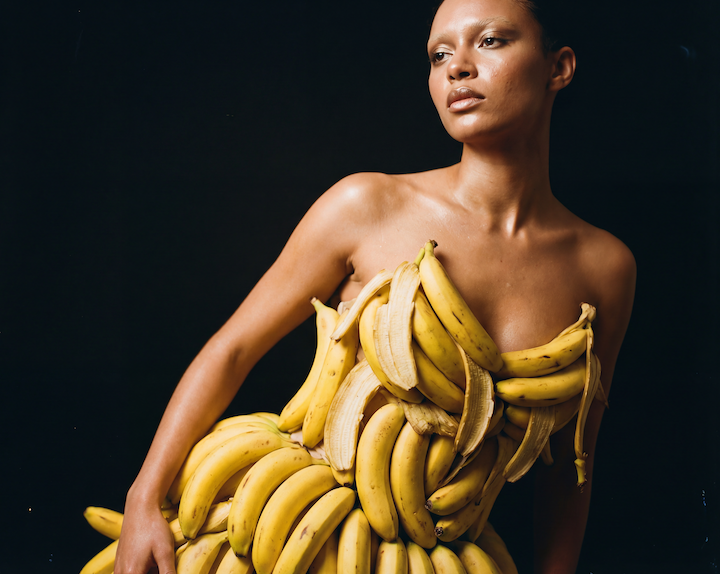
Human skin is incredibly complex. It isn’t perfectly even or polished. Real skin contains tiny details like pores, faint wrinkles, subtle bumps, and small color variations.
Many AI image models struggle to recreate this complexity. Instead, they produce faces where the skin becomes uniform and overly polished. When texture disappears, a portrait can start to look:
- waxy
- glossy
- blurred
- unnaturally perfect
Even if the facial structure looks correct, the missing micro-details make the image feel artificial.
To address this problem, The Clueless developed Vellum AI Skin Enhancer, now available on OpenArt. The model is designed to restore natural skin texture while upscaling AI portraits, helping them look sharper, more detailed, and closer to hyper-real photography.
What “Plastic Skin” Actually Means
Plastic skin isn’t just about smoothness. It’s the absence of natural skin structure. Real skin reflects light unevenly because of pores, tiny shadows, and subtle surface variation. When these details disappear, lighting spreads evenly across the face, creating that unmistakable synthetic look.
This is why AI portraits with plastic skin often feel slightly off. Your brain recognizes that something about the texture isn’t behaving like real human skin.
Common Causes of Plastic Skin in AI Images
Several factors can lead to this effect:
Aggressive smoothing during generation
Some AI models automatically soften skin to make portraits look cleaner, but the process often removes natural texture.
Low-detail source images
If an image doesn’t contain enough detail, the AI can’t reconstruct pores or micro-textures accurately.
Heavy filters or retouching
Beauty filters and editing tools often blur the skin surface, removing information needed for realistic reconstruction.
Multiple editing passes
Each time an image is reprocessed or enhanced, small details can gradually disappear. Once that texture is gone, the portrait loses one of the key ingredients of realism.
How Vellum AI Restores Natural Skin Texture
This AI skin enhancer is designed specifically to solve this problem. Instead of smoothing the skin further, the model analyzes the portrait and rebuilds natural surface detail that makes skin look human.
It works by restoring several elements at once.
Skin micro-texture
Tiny details such as pores, faint wrinkles, and subtle surface grain are reconstructed to bring back natural skin structure.
Tonal variation
Real skin contains slight color shifts and brightness differences. Vellum reintroduces these variations to prevent the face from appearing flat.
Facial detail clarity
Important features like the lips, nose, and facial contours remain sharp while the skin becomes more realistic.
Lighting depth
The enhanced texture interacts with the existing lighting so shadows and highlights remain believable. The result is a portrait that looks less like a digital render and more like a photograph.
Fixing Plastic Skin with Vellum AI
Enhancing a portrait with Vellum AI on OpenArt only takes a few steps.
Step 1: Select Skin Enhancer and upload your image
Open the Image module on OpenArt and choose Skin Enhancer. Then upload the portrait or AI-generated image you want to improve.
Step 2: Choose the upscaling resolution
Select your preferred output resolution—2K, 4K, or 8K—depending on how much detail and clarity you want in the final image.
Step 3: Adjust the skin texture level
Use the Skin Texture Score to control how strongly the model enhances natural details like pores, wrinkles, and subtle skin variation.
Step 4: Generate and download the result
Run the enhancement with your selected settings. Once the image is processed, download the final version with improved skin texture and more realistic portrait detail.
Tips for Better Skin Enhancement Results
The quality of the input image can make a noticeable difference in the final result.
Start with higher-resolution portraits
Images with more detail allow the AI to reconstruct skin texture more accurately.
Use images with clear facial visibility
Portraits where the face is well lit and unobstructed tend to produce stronger results.
Avoid heavy filters before enhancement
Filters that blur or smooth the skin remove the texture information the AI needs.
Check the enhanced output carefully
Comparing the original and enhanced versions helps confirm that realism improved while facial identity remained intact.
Try different portraits
Different lighting conditions and facial angles can influence how well the texture reconstruction works.
Why Realistic Skin Matters in AI Portraits
Skin texture might seem like a small detail, but it plays a huge role in how believable a portrait feels.
When texture is missing, viewers immediately notice something unusual—even if they can’t explain exactly why.
Restoring pores, wrinkles, and natural variation brings the portrait closer to how human skin actually behaves under light, which dramatically improves realism.
Use Cases and What to Try Next
Vellum AI Skin Enhancer is useful anywhere portrait realism matters. If you’re generating AI portraits for creative projects, character design, marketing visuals, or social media, restoring natural skin texture can instantly make the image feel more believable.
Creators often use it to fix overly smooth AI faces, refine character portraits, enhance profile images, or improve high-resolution visuals where facial detail becomes more noticeable. The added micro-texture and natural skin variation help portraits hold up better in close-ups, larger displays, and professional creative work.
If you’re experimenting with AI portraits or upscaling on OpenArt, the next step is simple: try running a few of your images through the skin enhancer. Test portraits with different lighting, expressions, and resolutions to see how texture reconstruction changes the overall realism.

.png)