
 ChatGPT
 Perplexity
 Claude
 Gemini
Most AI video tools generate one continuous clip. It might look good for a few seconds, but it’s usually just a loop with no variation.
Real videos aren’t one shot. They move between angles such as wide shots, close-ups, and different perspectives. That’s what creates pacing and keeps things interesting. Without cuts, AI videos feel flat and incomplete.
What’s Missing: Shot Planning
Before any real video is made, there’s always a plan. Directors decide:
- what each shot looks like
- where the camera goes
- how the scene progresses
Most AI tools skip this step. They go straight from prompt to video, which is why the result feels random.
What’s missing is a “Shot Plan”, a clear breakdown of how the video should be structured before it’s generated.
Smart Shot Fills that Gap
Smart Shot is built to solve this exact problem.
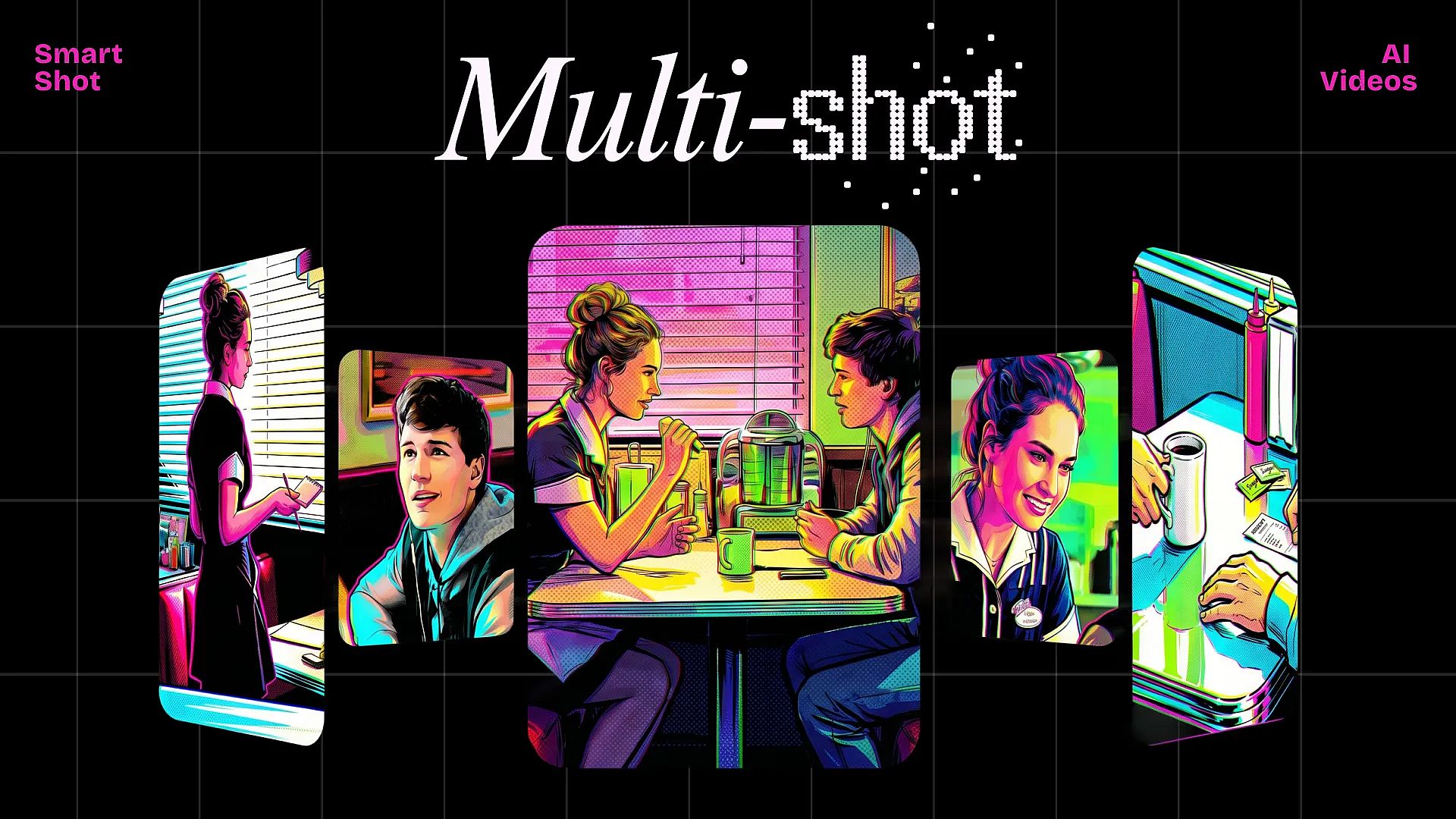
Instead of generating a single clip, it creates a multi-cut cinematic video from one prompt. You describe your idea, and it produces a sequence with 3–5 different shots, each with its own framing and camera movement.
The key difference is that Smart Shot doesn’t just generate visuals, it plans the video first.
How the Shot Plan Works
The Shot Plan is the core of OpenArt’s Smart Shot feature. It’s an AI-generated production sheet that acts as the blueprint for your video.
When you enter a prompt, Smart Shot creates a full breakdown that includes:
- Storyboard panels showing each shot
- Camera positions and movements for every cut
- Shot types like wide shots, close-ups, or tracking shots
- Subject references to keep characters or objects consistent
- Environment setup to maintain the same scene across cuts
- Mood and lighting direction to control the visual tone
Instead of guessing what the AI will generate, you can see the structure before the video is created.
This is what makes the final output feel intentional. Each shot connects to the next, instead of feeling like a random clip.
How to Create a Multi-Cut AI Video
Using Smart Shot is simple, even if you’ve never made videos before.
1. Describe Your Idea
Start with a prompt that explains your scene. For example, instead of writing something vague, describe the subject, action, and setting clearly.
2. Add References (Optional)
You can use saved characters from your OpenArt account or environments from OpenArt Worlds. This helps keep everything consistent across shots.
3. Review the Shot Plan
Smart Shot generates a full shot breakdown. You’ll see how the video is structured—what each cut looks like, how the camera moves, and how the scene flows.
4. Make Adjustments
If needed, you can tweak the plan. For example, you might want a close-up instead of a wide shot, or a different camera movement.
5. Generate the Final Video
Once you’re satisfied, generate the video. You’ll get a 10–20 second sequence with 3–5 distinct cuts, all connected into one cinematic output.
You can also export individual frames from any shot if you want still images for thumbnails or assets.
Where Smart Shot Actually Helps
This isn’t just about making videos look better. It changes how you can use AI video in real workflows.
Content Creators
Instead of posting static clips, you can create videos with movement and variation. Multiple cuts make your content feel more like edited footage, which keeps viewers engaged.
Filmmakers and Pre-Visualization
If you’re planning a scene, you can quickly see how it plays out. The Shot Plan gives you a clear structure before anything is filmed, saving time during production.
Marketing and Product Videos
You can show a product from different angles in one video—wide shot, detail shot, close-up—without filming anything manually. This makes it easier to create ad-ready content quickly.
AI Influencers and Character Content
Maintaining consistency is a big challenge in AI video. Smart Shot keeps characters and environments stable across all cuts, so your content looks cohesive from start to finish.
Try It Yourself
If you’ve used AI video before, you’ve probably seen the limitations of single-shot clips.
Smart Shot changes that by adding structure before generation. Instead of guessing what you’ll get, you define how the video should work, then let the AI handle the execution.
If you want videos that feel like real scenes, not loops, try Smart Shot on OpenArt and see the difference for yourself.