
Gerador de storyboard com IA
O gerador de storyboard com IA do OpenArt foi feito para cineastas, equipes de vídeo e profissionais de marketing que precisam ver a sequência de cenas antes de investir orçamento nela. Cole um roteiro, uma lista de cenas ou uma ideia inicial e receba painéis visuais consistentes em minutos, sem precisar saber desenhar. Visualize ângulos de câmera, marcação e ritmo antes de gravar, apresentar a um cliente ou entregar a sequência para a produção.
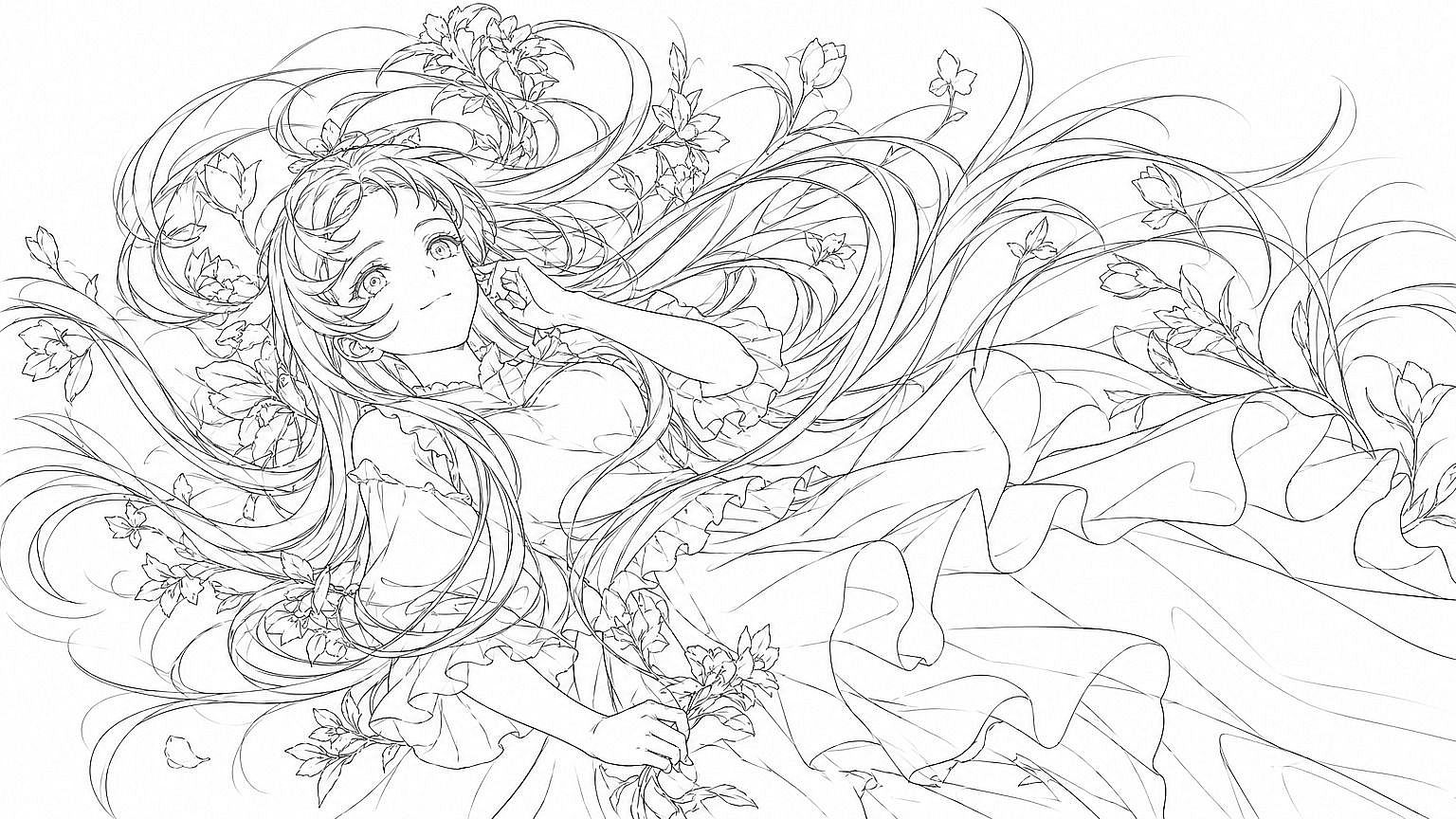

Como criar um storyboard com IA
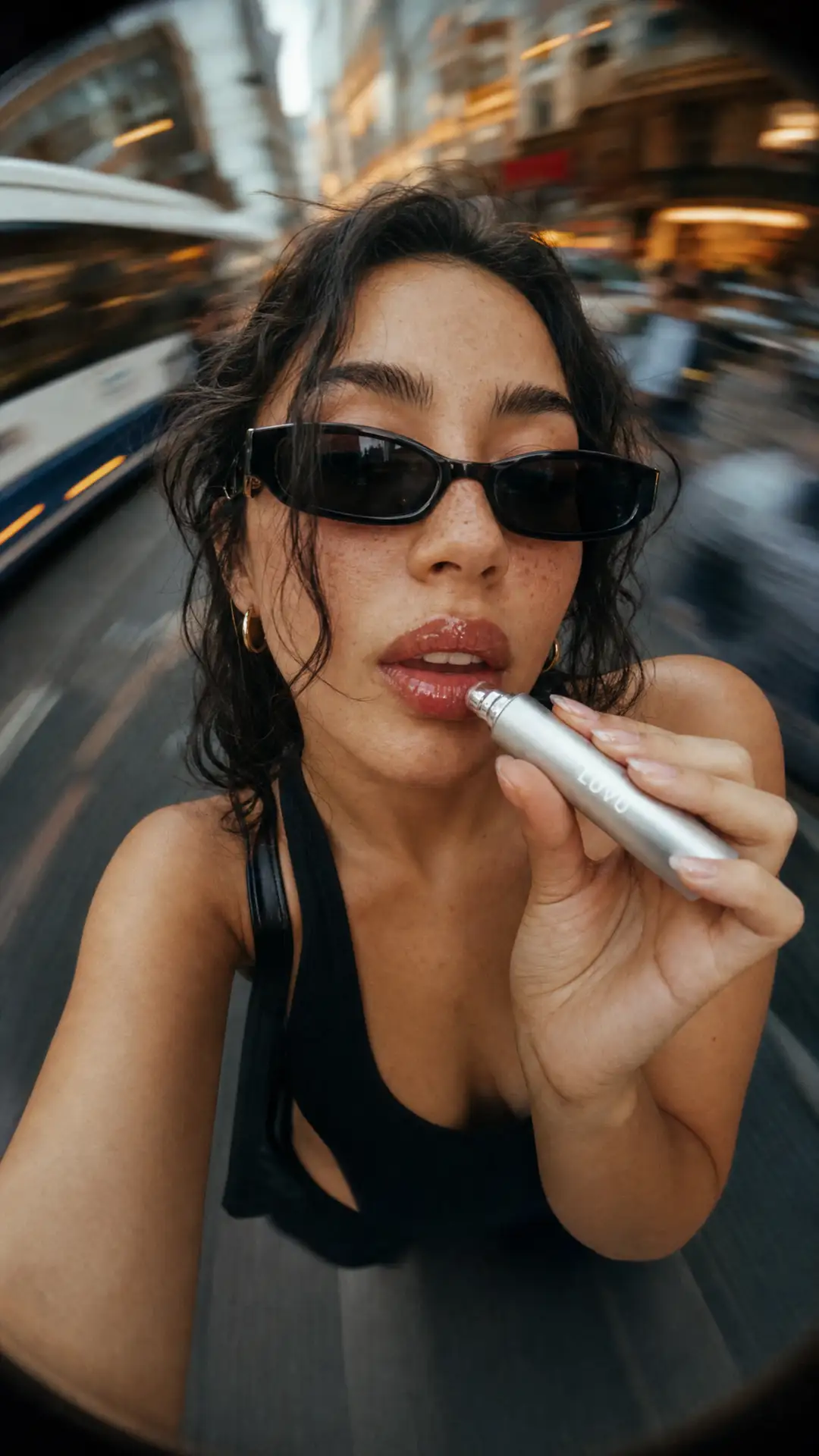

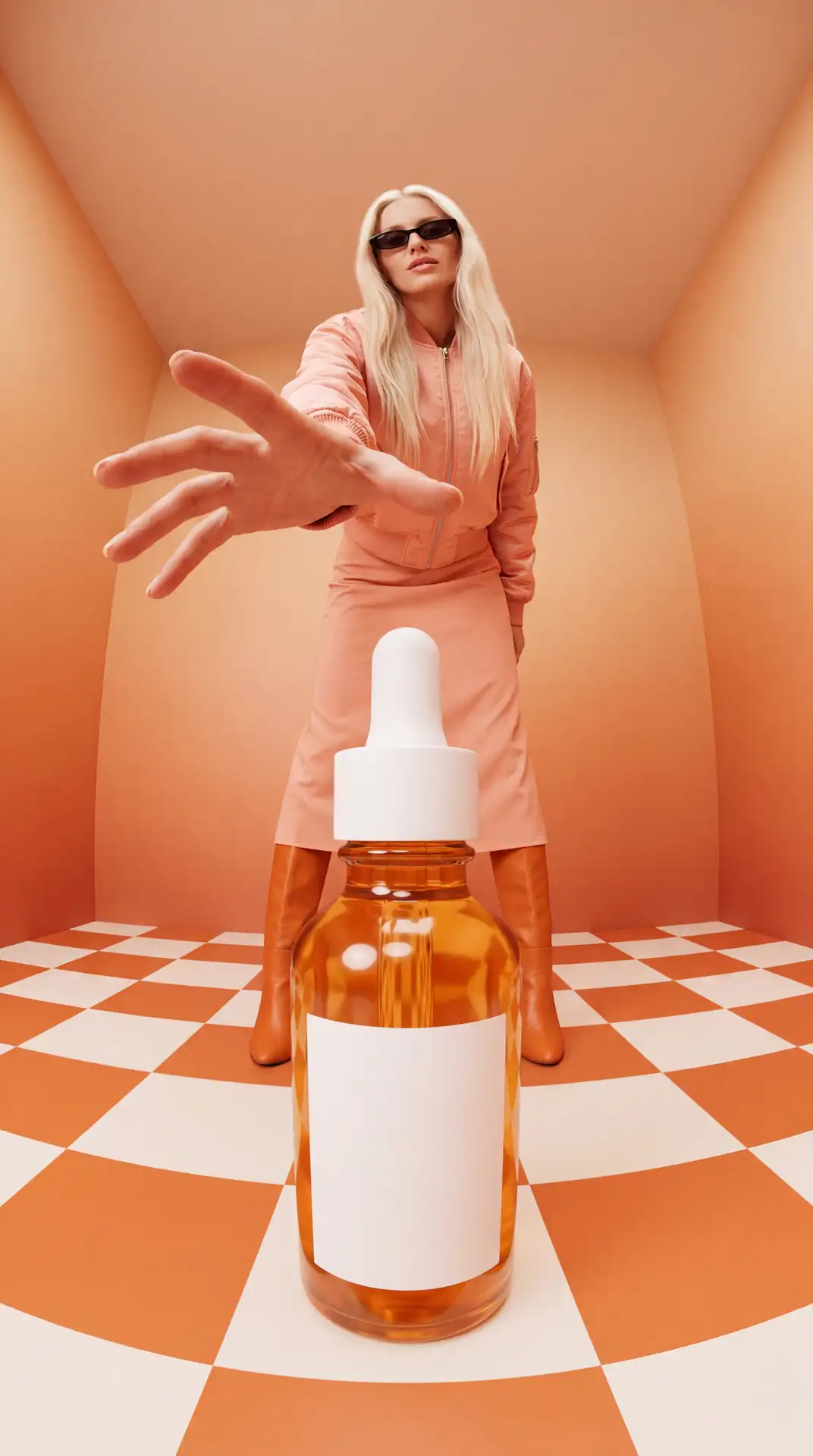
Passo 1: Escreva um prompt para cada cena
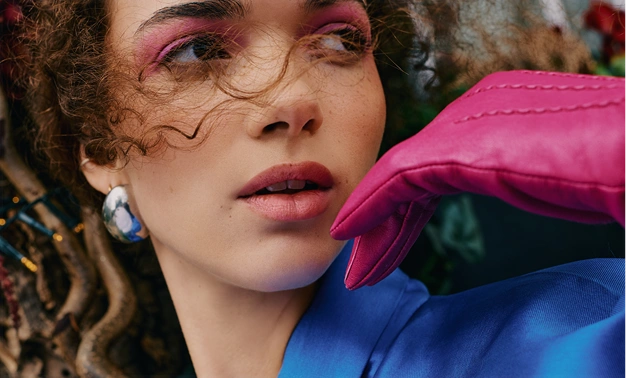
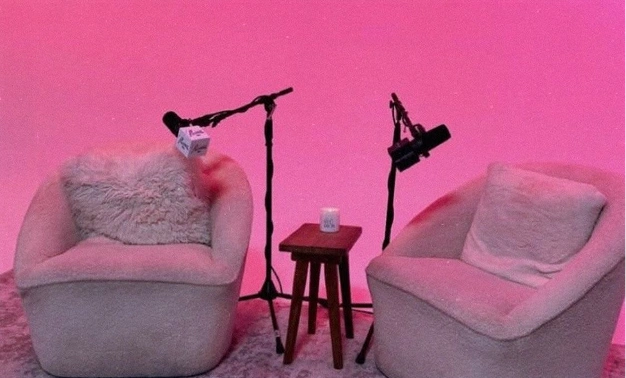
Abra o Gerador de Imagens com IA e descreva a cena, a ação e o ângulo de câmera de um painel por vez. Adicione seu elenco do Character Builder para que os mesmos rostos e cenários apareçam em todos os painéis.

Passo 2: Gere e refine cada painel
Gere o painel a partir do seu prompt, depois ajuste as palavras e refaça a geração até que o enquadramento e a ação combinem com sua lista de cenas. Corrija um painel por vez sem mexer nos outros.
Passo 3: Exporte a sequência
Quando cada painel estiver do jeito certo, exporte o conjunto como uma sequência numerada de quadros. Use para orientar uma gravação, apresentar a um cliente ou partir direto para o Gerador de Vídeo com IA.
Gerador de Storyboard com IA feito para fluxos de trabalho de produção reais
De personagens consistentes ao controle de câmera, veja como o gerador de storyboard com IA da OpenArt leva um roteiro do primeiro rascunho a uma sequência de cenas pronta para produção — e quem conta com ele todos os dias.
Mantenha personagens e cenários consistentes
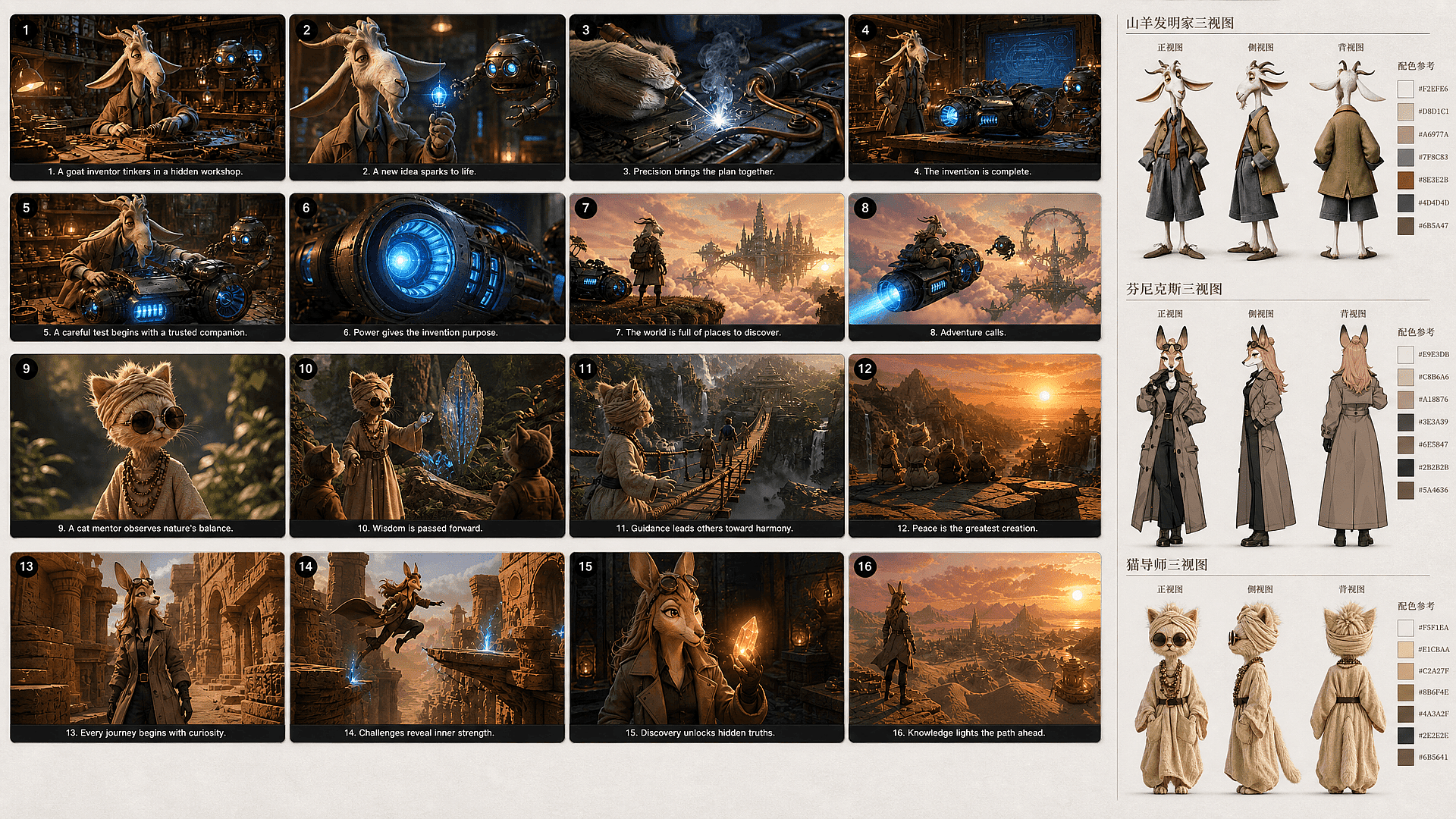
O OpenArt evita que seu storyboard pareça várias produções sem relação entre si. Criador de personagens salva cada membro do elenco na sua biblioteca persistente, para que você reutilize o mesmo rosto e a mesma identidade em todos os painéis. Você também pode levar referências de cenário já definidas para as cenas seguintes, mantendo os locais reconhecíveis conforme a posição da câmera e a ação mudam.
Controle o ângulo de câmera e o tipo de cena em cada painel
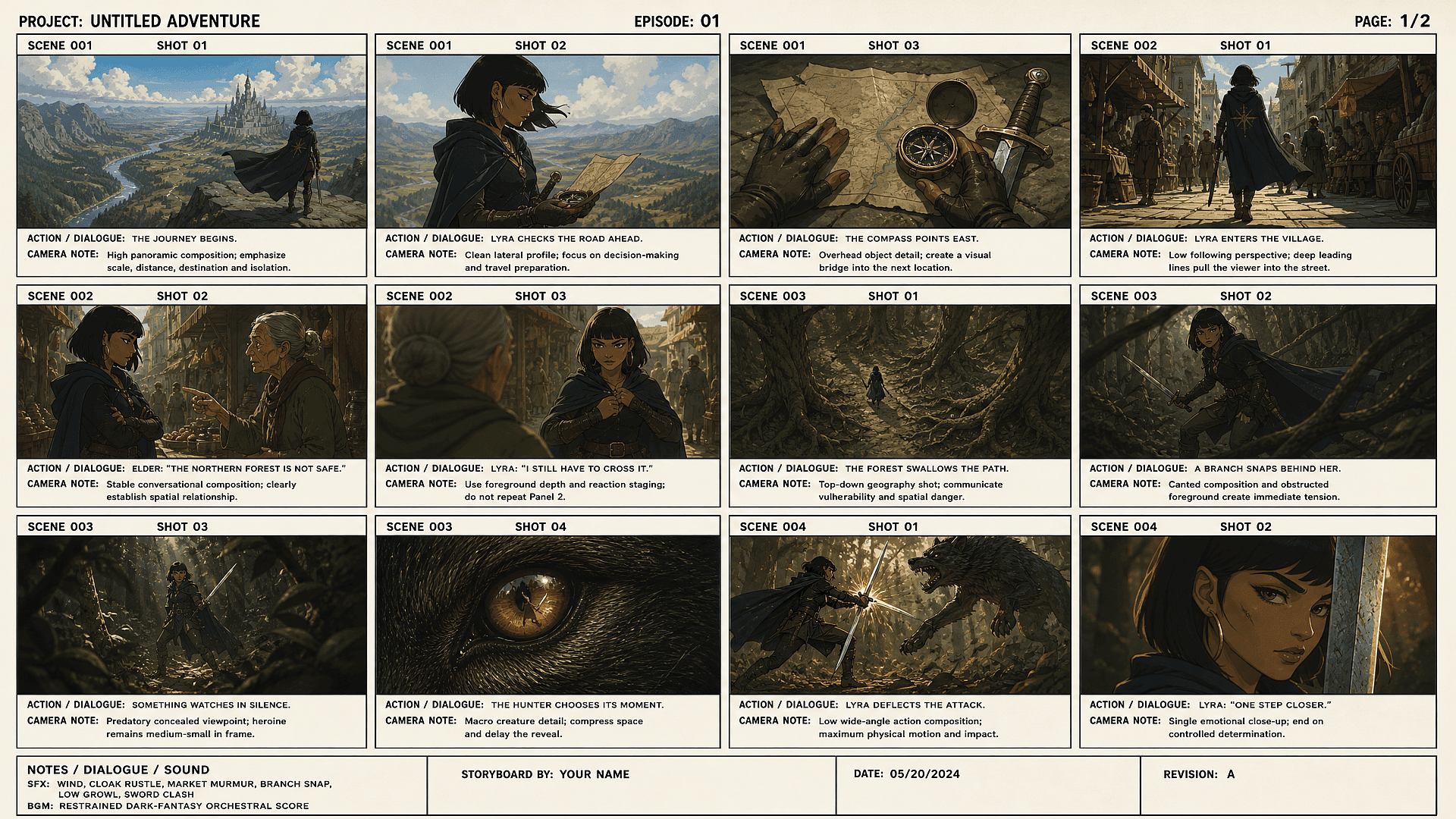
Você pode dirigir cada painel com um plano aberto, close-up ou um ângulo de câmera específico dentro do Gerador de imagens com IA. Descreva o tipo de cena em linguagem simples e o painel segue. Você não precisa de prompts técnicos ou terminologia de câmera para acertar o enquadramento.
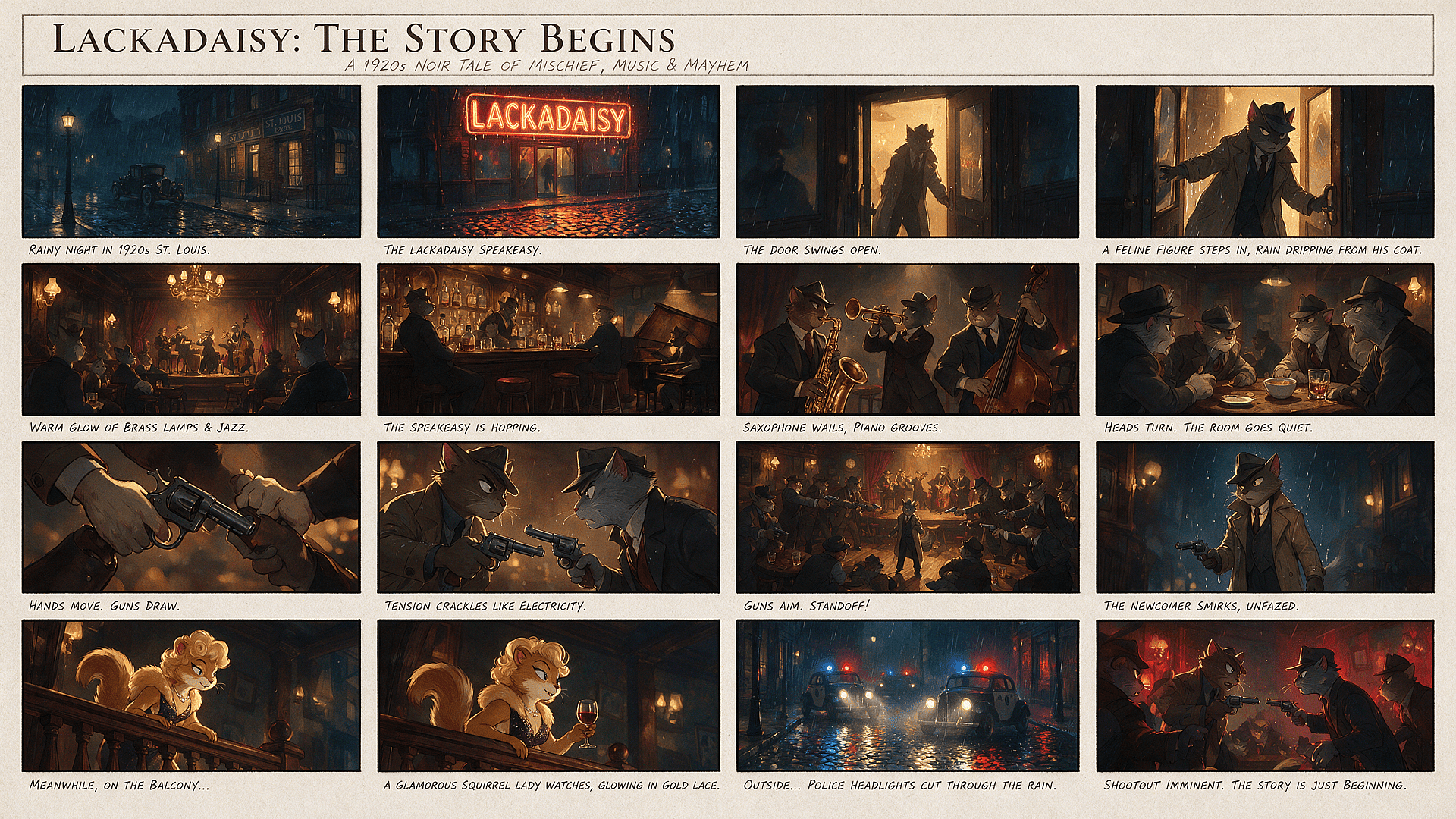
Regenere um único painel sem refazer o storyboard
A OpenArt permite refazer um painel mantendo o resto do seu storyboard intacto. Você pode revisar uma expressão, composição ou ângulo de câmera fraco sem reconstruir as cenas já aprovadas. Sua sequência permanece estável enquanto você testa alternativas, evitando os atrasos e problemas de continuidade causados pela regeneração de todo o board.
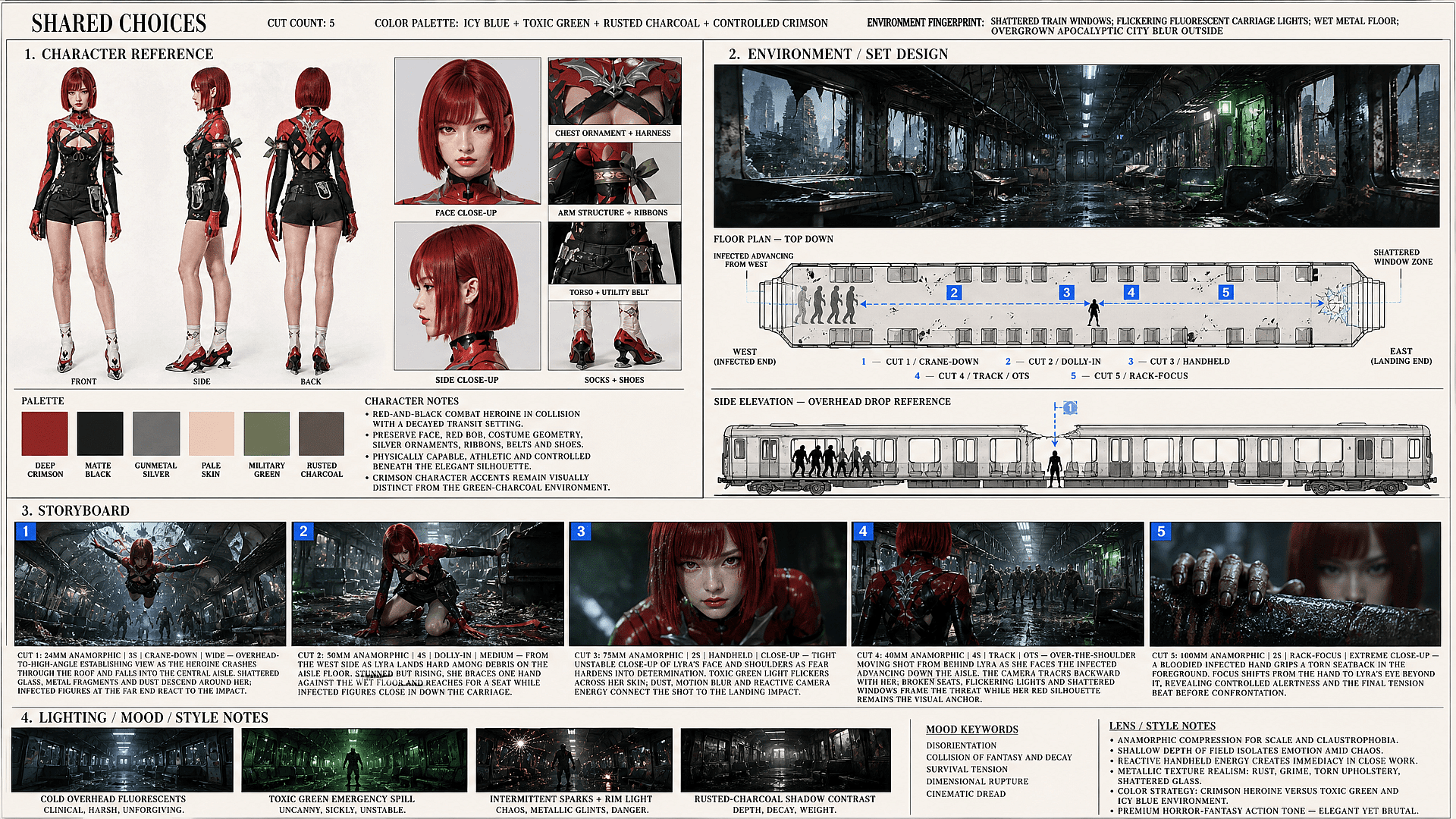
Transforme um storyboard finalizado em vídeo animado
Use each approved panel as the starting frame for motion in OpenArt's Gerador de vídeos com IA. Modelos de imagem para vídeo conseguem animar o movimento dos personagens, o movimento do ambiente e os movimentos de câmera, seguindo a composição do painel. Você pode gerar cada cena separadamente e depois continuar a produção com o plano visual já estabelecido.
Explore os Modelos de Imagem e Vídeo com IA Mais Recentes
Estes são os modelos que impulsionam tudo o que você pode criar na OpenArt, de uma única imagem a um vídeo completo.
Perguntas frequentes Perguntas
Fazer storyboard manual significa desenhar cada quadro você mesmo, e ferramentas genéricas de imagem com IA só geram imagens separadas, sem planejar como uma cena leva à próxima. Já o OpenArt Smart Shot constrói um plano de cenas visível — ângulos de câmera, composições, detalhes das cenas — que você pode revisar e ajustar antes de renderizar os painéis. O OpenArt Character Builder então mantém seus personagens salvos reconhecíveis do início ao fim, para que os painéis pareçam uma única produção em vez de um conjunto de imagens sem relação.
Aprenda com especialistas no blog
Tenha os insights de que você precisa. Nossos especialistas compartilham truques práticos, destrincham os temas mais quentes e oferecem guias essenciais para ajudar você a construir, otimizar e escalar.
Saiba mais
OpenArt Director fica em 1º lugar no benchmark de agentes de anúncios em vídeo com IA da Physion Labs